FAQ
- Intro #1
- FAQ list #2
- Send all FAQ to MemSource #3
- Create new FAQ #4
- FAQ categories list #5
- Create FAQ category #6
Intro
This section of the admin panel contains the FAQ and FAQ categories. FAQs are used in the "Block FAQ", where you can select a category to display the associated FAQ items. Additionally, FAQs and their categories are available on the static FAQ page, which is predefined in the CMS.
FAQ list
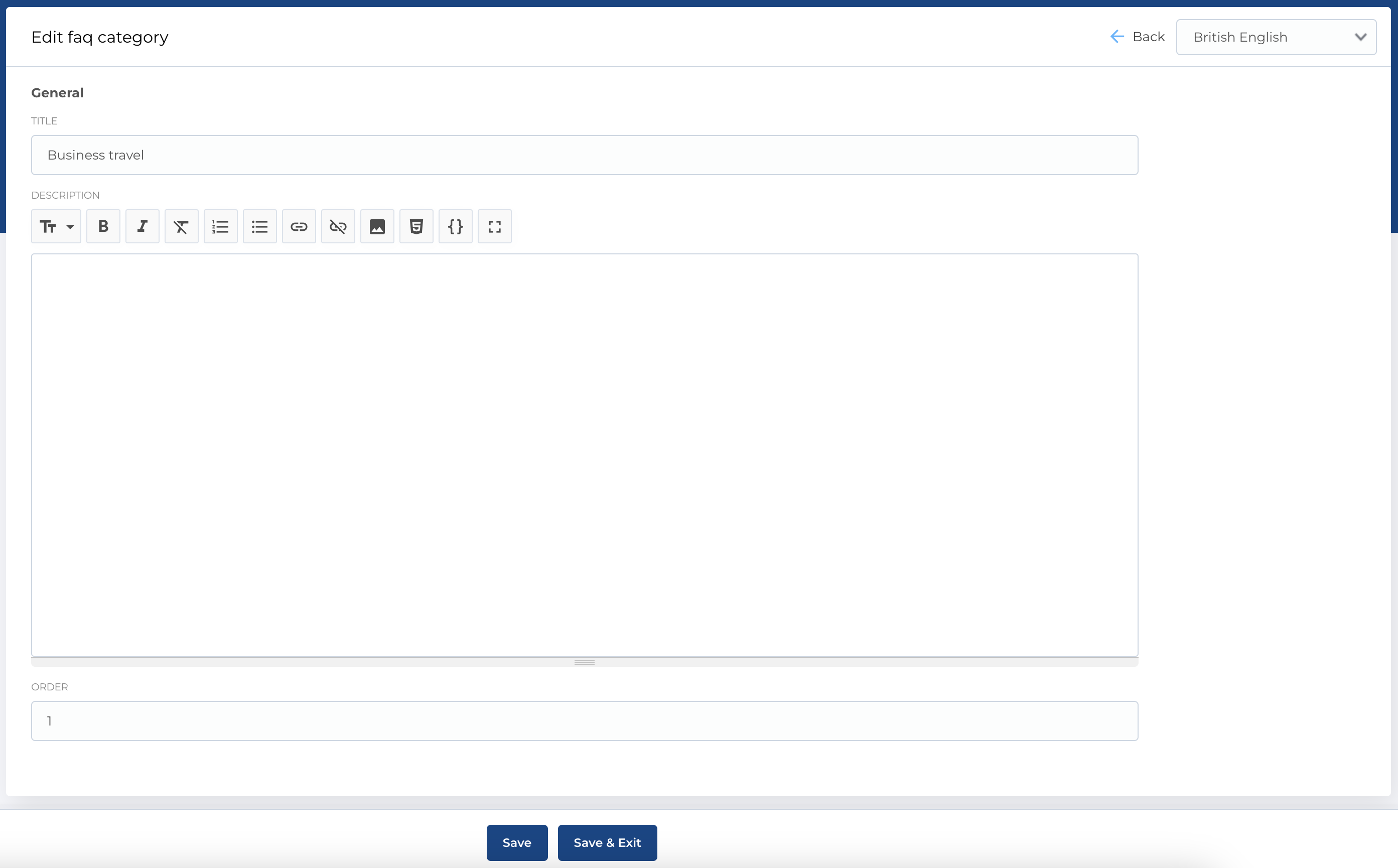
This section contains a list of FAQs with information about each entry. Table has next columns:
- ID: Unique identifier of the FAQ.
- Title: The title of the FAQ.
- Anchor: An anchor link used for navigating directly to the FAQ on the frontend.
- Is Active: Indicator whether the FAQ is active or inactive.
- Actions: Management buttons for the FAQ entry.
Available Actions:
- Active / Bin Switcher: Toggle the status of the FAQ (active or moved to the bin).
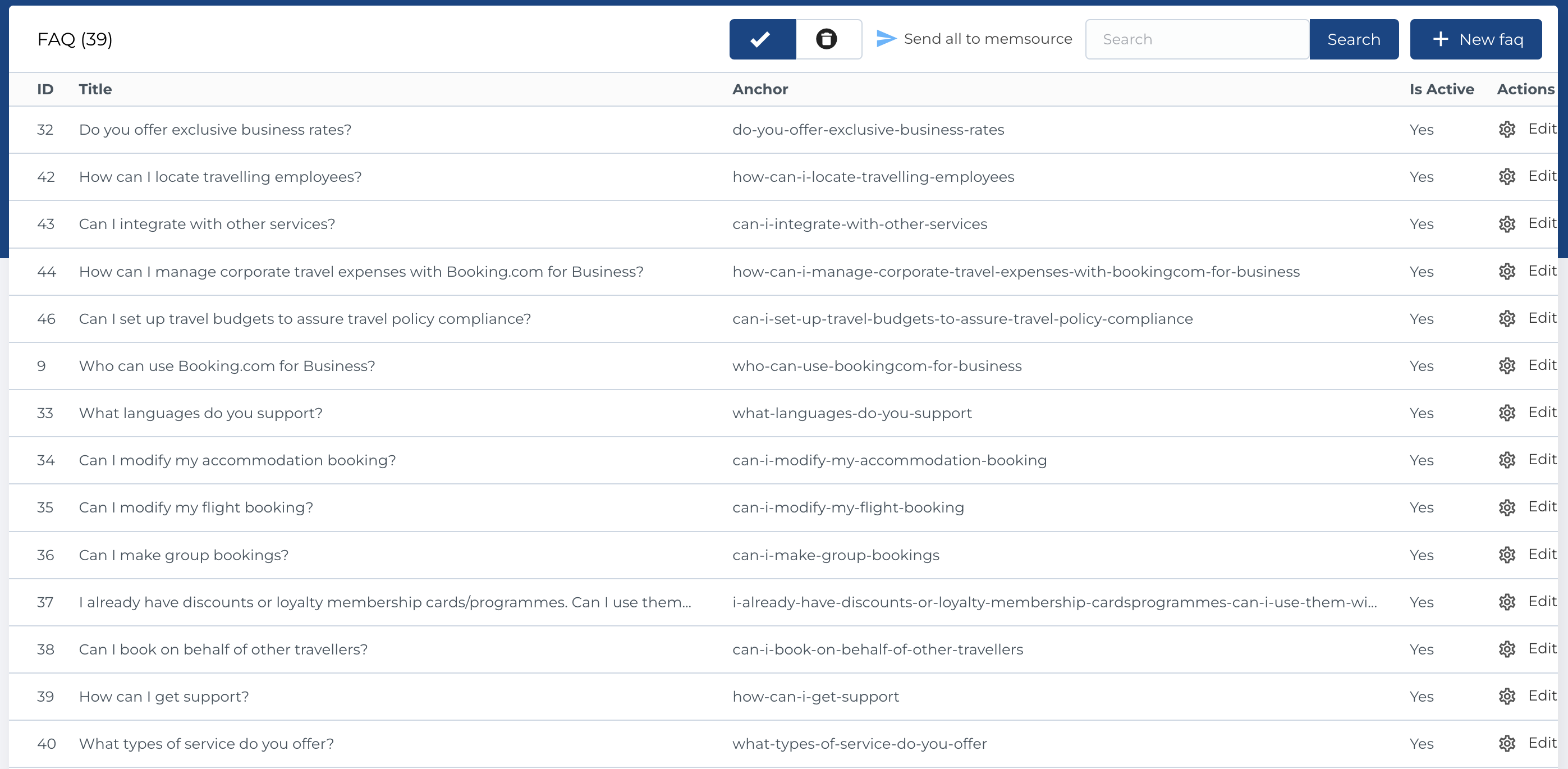
- Send to MemSource Button: Button to send the FAQ to MemSource for translation. This opens a modal where you can select languages for translation and add comments.
- Search: Search FAQs by Title.
- Create New Entity: Open the form to add a new FAQ entry.
- Edit Existing Entity: Modify an existing FAQ.
- Move to Bin: Move a FAQ to the bin for temporary removal.
- Restore Entity (in bin section): Restore a FAQ that was moved to the bin.
- Delete Entity (in bin section): Permanently delete a FAQ from the bin.
Send all FAQ to MemSource
As mentioned in previous section, button Send to MemSource available on the FAQ list page at the top.
After clicking button, a modal will open and some configurations will be available.
You can specify menu translation languages and add comment in Note fields, whitch will be sent to MemSource.
Create new FAQ
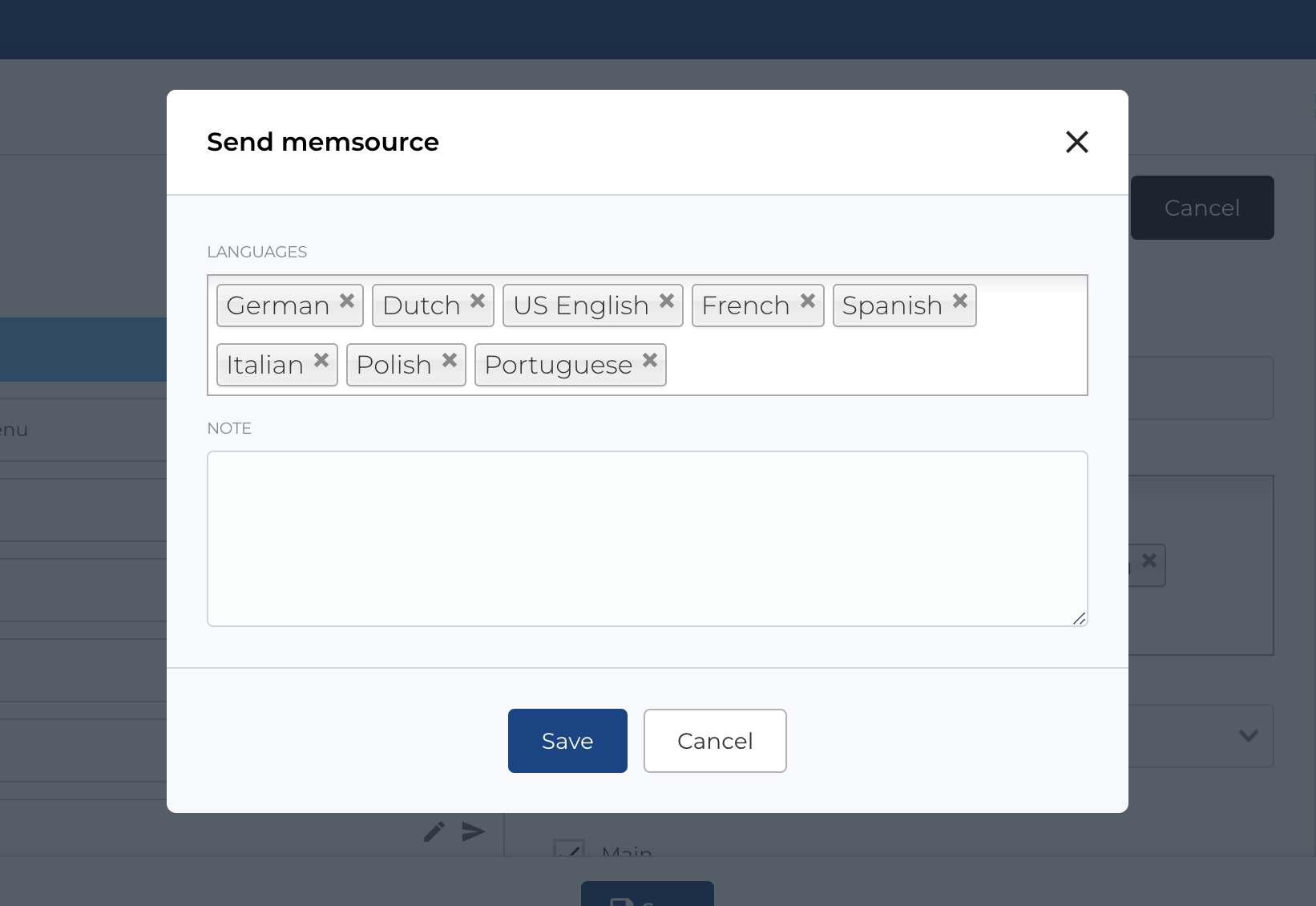
When creating a new FAQ, you can enter all the necessary information for the entry.
Form has next fields:
- Title: The title of the FAQ.
- Description (Markdown): A detailed description of the FAQ, using Markdown for formatting.
-
Video Type: Select the video source type (options: Uploaded Video, Video from Youtube, or Video from Vidyard).
- Video File: Select an uploaded video (if Uploaded Video is chosen).
- Youtube Iframe: Insert iframe code from YouTube (if Video from Youtube is chosen).
- Vidyard Code: Enter the Vidyard video code (if Video from Vidyard is chosen).
- Anchor: Anchor link for the FAQ.
- FAQ Category (Multiselect): Assign the FAQ to one or more categories.
- Role Resource Filters (Multiselect): Filter by user roles for viewing the FAQ.
- Category Resource Filters (Multiselect): Filter by categories related to the FAQ.
- Photo (Image Picker): Upload an image to associate with the FAQ.
- Is Active (Checkbox): Mark the FAQ as active or inactive.
- Translation is Published (Checkbox): Mark whether the translation is published or not.
Required Fields:
There are no mandatory fields in this form, but best practice is to ensure the Title and Description are filled for proper display.
Also you can Import translations with button in the top.
FAQ categories list
This section manages the categories used to organize FAQs and has next columns:
- ID: Unique identifier of the category.
- Title: The title of the category.
- Order: The display order of the category.
- Actions: Management buttons for the category entry.
Available Actions:
- Active / Bin Switcher: Toggle the status of the category (active or moved to the bin).
- Search: Search categories by title.
- Create New Entity: Open the form to add a new category.
- Edit Existing Entity: Modify an existing category.
- Move to Bin: Move a category to the bin for temporary removal.
- Restore Entity (in bin section): Restore a category that was moved to the bin.
- Delete Entity (in bin section): Permanently delete a category from the bin.

Create FAQ category
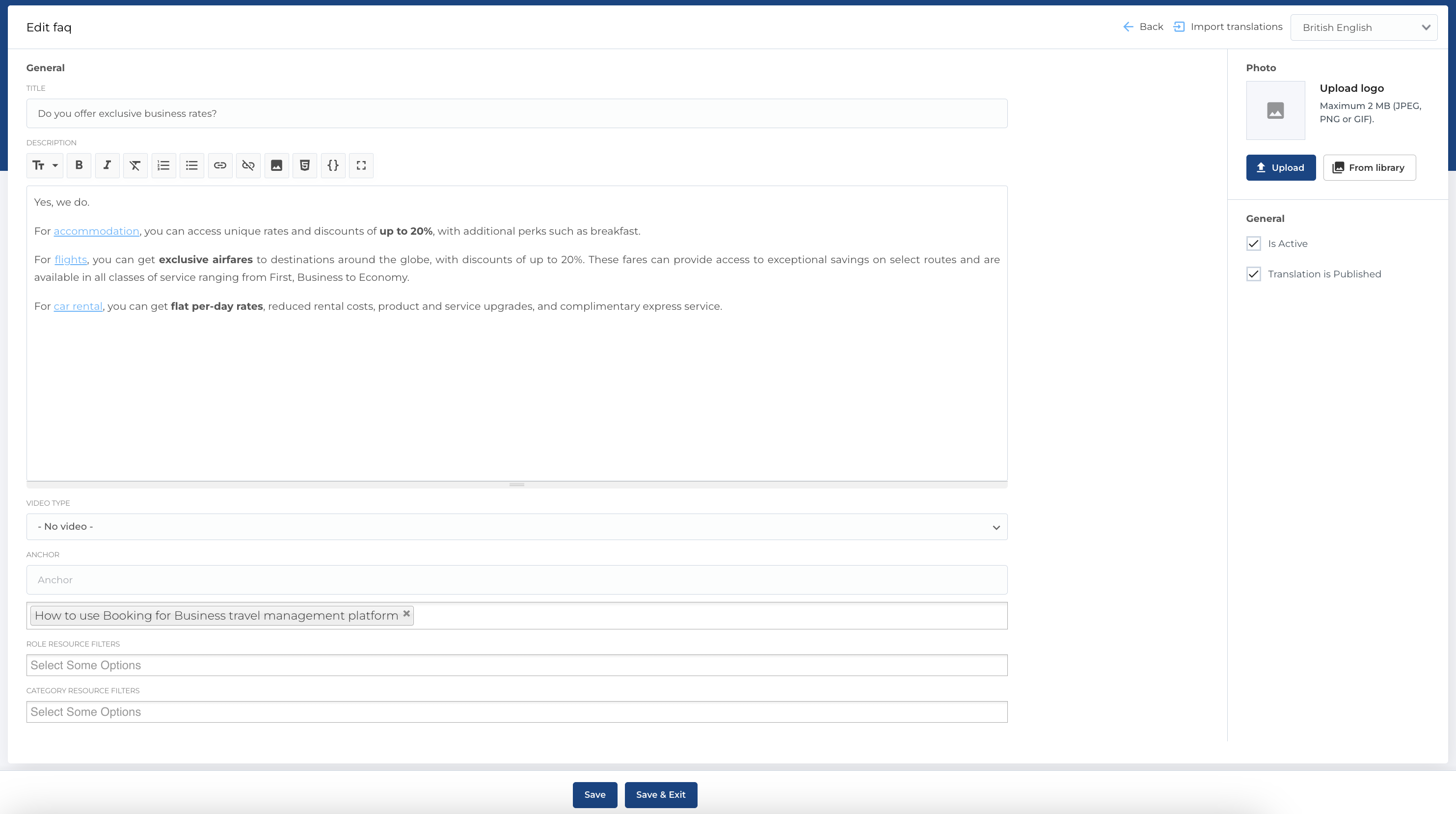
When adding a new FAQ category, you will need to complete the following fields:
- Title: The name of the category.
- Description: An optional description for the category.
- Order: The display order of the category.
Required Fields:
- Order: This field is required to specify the position of the category in the list.
Edit form is the same as the create form, with all fields available for modification.