
Mouseflow
Integration
Envirement
Config in .env file
- MOUSE_FLOW_ENDPOINT=https://api-eu.mouseflow.com
- MOUSE_FLOW_USERNAME=***
- MOUSE_FLOW_PASSWORD=***
- MOUSE_FLOW_WEBSITE=***
Api documentations - https://api-docs.mouseflow.com/
Overview Integration
We send necessary events to GTM.
All events are described in the section GTM
Page MouseFlow Sessions list
The MouseFlow Sessions section of the admin panel displays a list of recorded page sessions that are parsed by the API every 5 minutes.
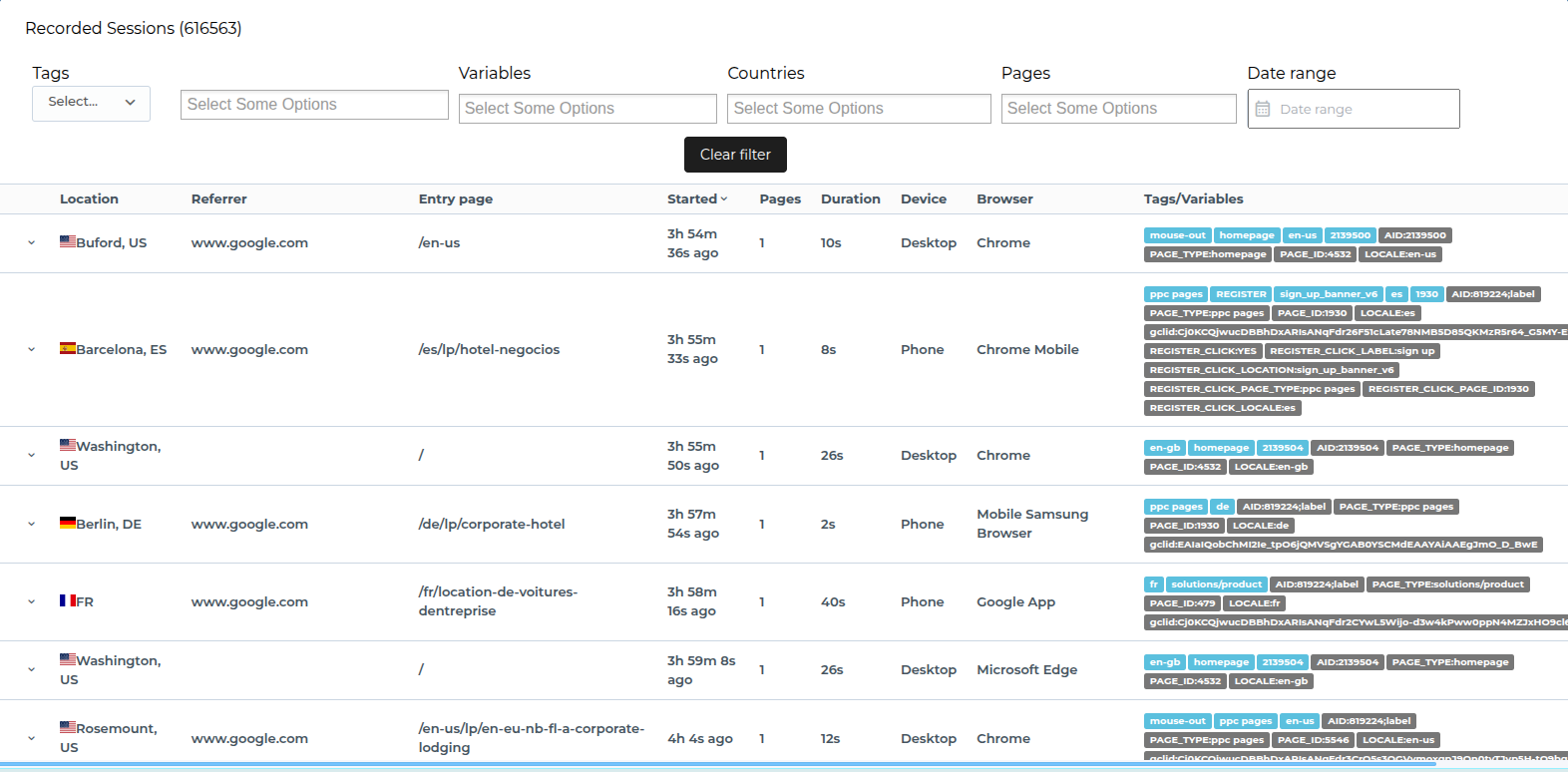
The table contains the following columns:
- Location: The origin city (based on the IP address) + The 2-char country code of the origin country (ISO 3166-1 alpha-2).
- Referrer: The URL of the web page that referred the user.
- Entry page: The normalized path of the entry page.
- Started: The time the recording started.
- Pages: The number of pageviews in the recording.
- Duration: The total duration of the recording, in ms.
- Device: The device type (Desktop, Tablet, Phone).
- Browser: The browser family (Chrome, Firefox, Safari, IE, Opera, ...).
- Tags/Variables: A list of tags used in this recording / A list of key-value pairs (ex: cart-value=345) associated with the recording (See Variables section).
Available Actions
The following actions are available for filtering and searching the analytics data:
- Filter by Tags: A dropdown to filter data by the tag (e.g., homepage, en-gb, etc.) with operands(And, Or, Nor, Only or, only and).
- Filter by Variables: A dropdown to filter data by the variable (e.g., AID, PAGE_TYPE, etc.) with operands(And, Or, Nor, Only or, only and).
- Filter by Pages: A dropdown or search field to filter by a specific page.
- Filter by Countries: A dropdown or search field to filter by a country.
- Filter by Date Range: A date picker that allows you to filter results by Date From and Date To.
- Clear filter: A button to reset all applied filters.
Dashboard
Intro
The MouseFlow Dashboard section of the admin panel displays a list of groups that are created by user.
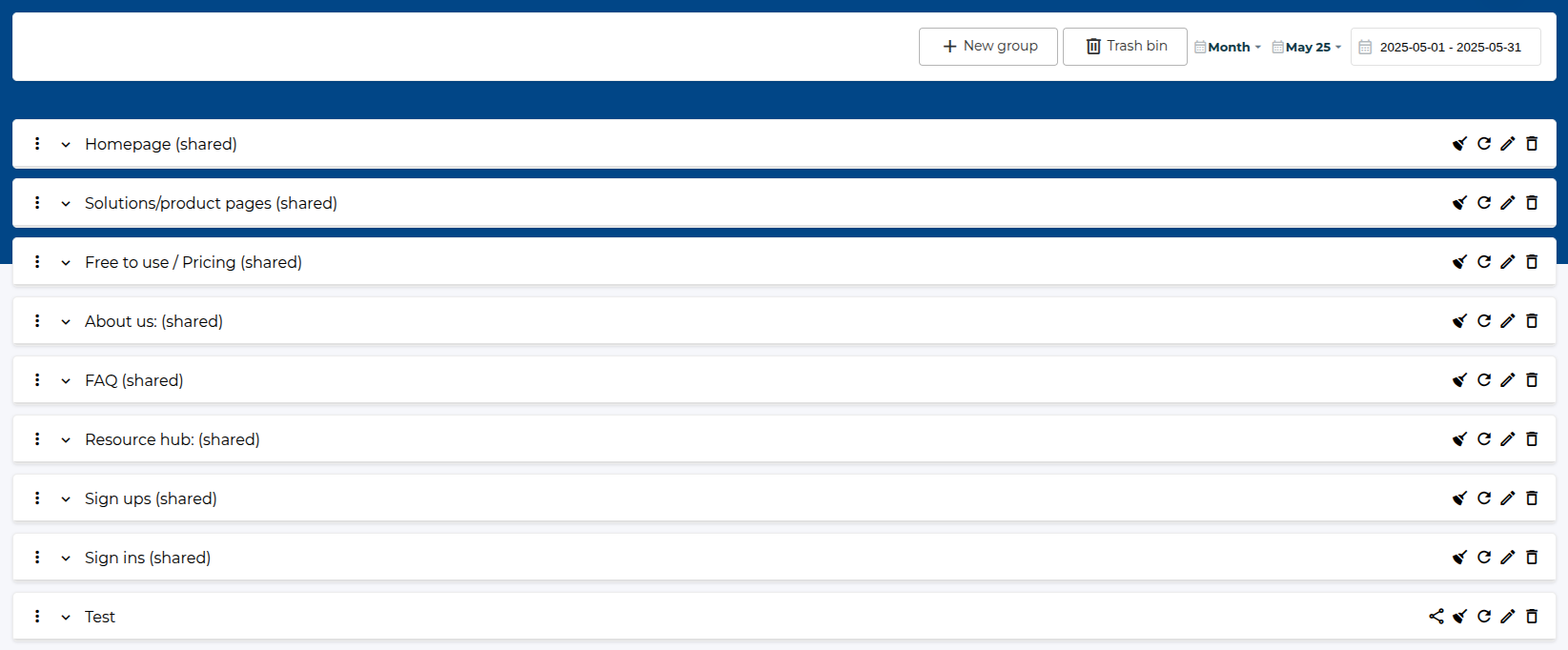
Available Actions
The following actions are available for filtering and created group:
- New group: A button to create a new group
- Trash bin: A button for viewing deleted groups.
- Filter by Date Range: A date picker that allows you to filter results by Date From and Date To. Apply global for all widgets.
Group
Create group
Group creating form is in the modal, which you can open by clicking New group button on the top menu.
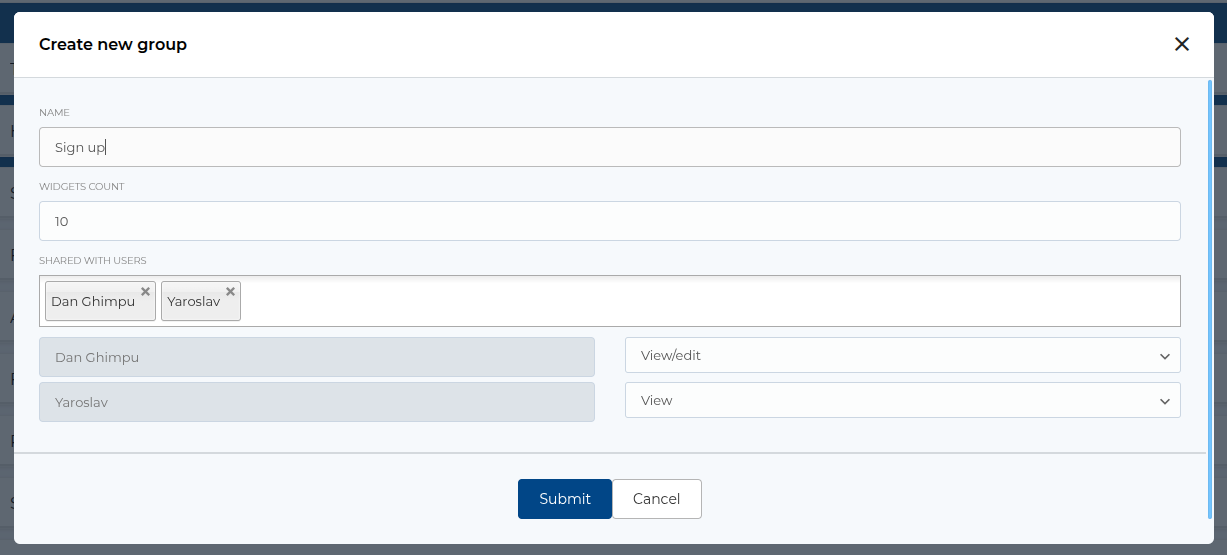
Available fields:
- Name: Name of the group.
- Widgets count: Count of the widget in group. Generating a grid for widgets.
- Shared with users: Select users who will have access to the group with viewing or editing permissions.
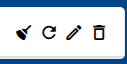
Available group actions on the right:
- Clear cache: Clearing cache for all widgets in group.
- Refresh group: Refresh data for all widgets in a group.
- Edit group: Opens a modal window where you can change the group.
- Delete group: Deleting a group.
Available group actions on the left:
- Move group: Sorts groups.
- Expand group: Displays all widgets in a group.

Widget
Creating a widget
To create a widget, need to click on the plus button.
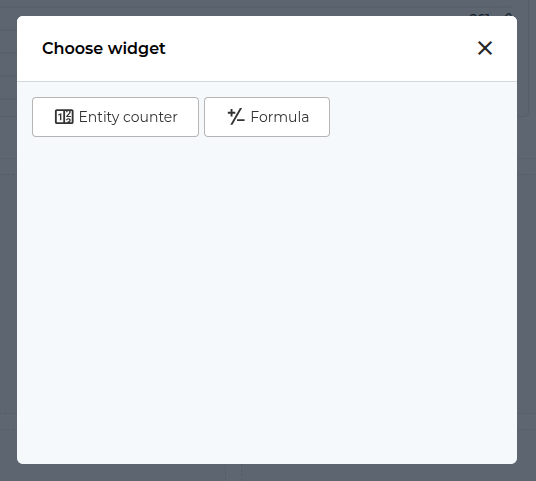
Widget types
- Entity counter: Displays data grouping by selected criteria.
- Formula: Calculates data using a given formula.
Create Entity counter
Entity counter creating form is in the modal, which you can open by clicking Entity counter button on the Choose widget modal.
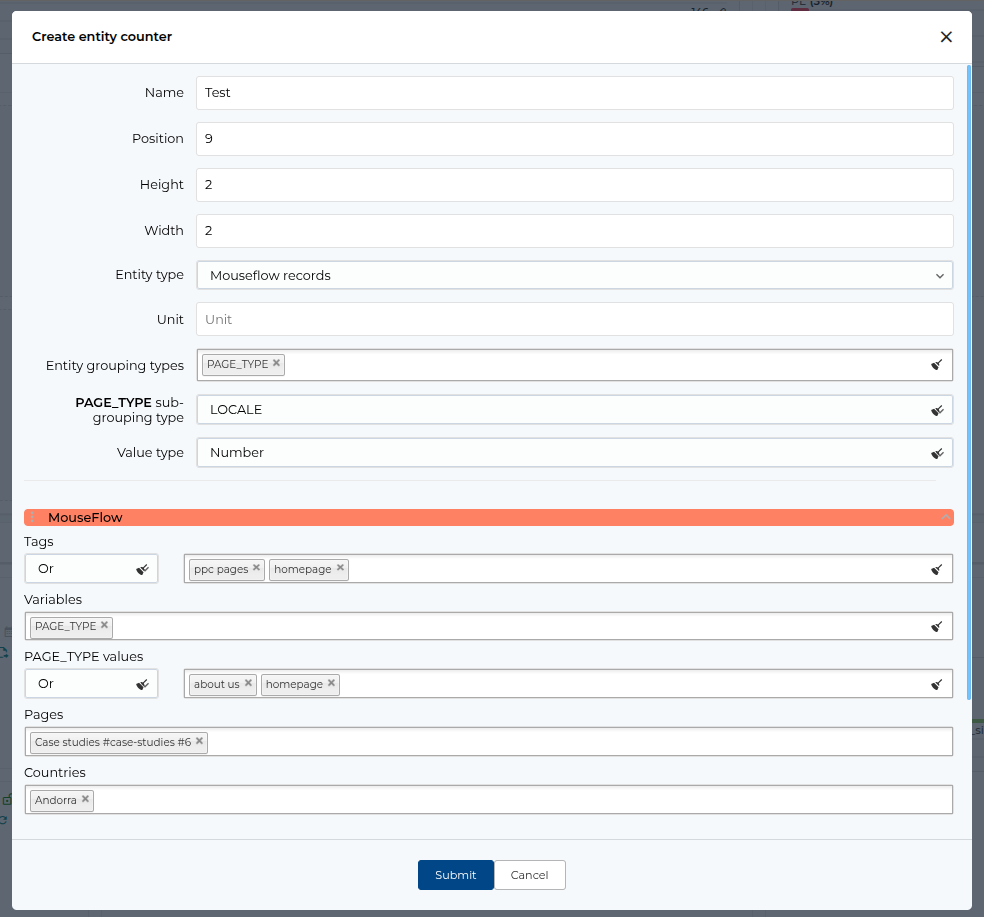
Available fields:
- Name: Name of the Entity counter.
- Position: Widget position in the group grid.
- Height: Widget height.
- Width: Widget width.
- Entity type: Model type, only 1 model is used - Mouseflow records.
- Unit: The unit of measurement that is displayed in the widget.
- Entity grouping types: Variable type for grouping data of Mouseflow records.
- Value type: Display type of values - integer or decimal number.
- Tags: Filter data by the tag (e.g., homepage, en-gb, etc.) with operands(And, Or, Nor, Only or, only and).
- Variables: Filter data by the variable (e.g., AID, PAGE_TYPE, etc.) values(e.g., faq, en, etc.) with operands(And, Or, Nor, Only or, only and).
- Pages: Filter data by a specific page.
- Countries: Filter data by a country.
Create Formula
Entity counter creating form is in the modal, which you can open by clicking Formula button on the Choose widget modal.
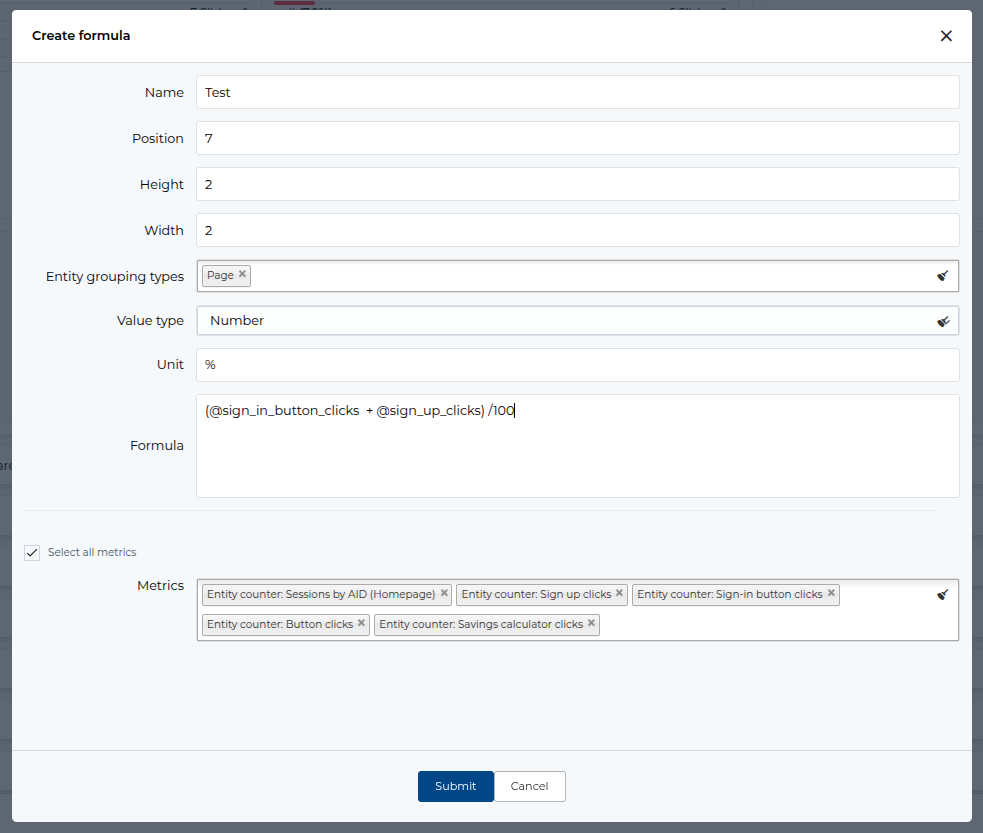
Available fields:
- Name: Name of the Entity counter.
- Position: Widget position in the group grid.
- Height: Widget height.
- Width: Widget width.
- Entity grouping types: Variable type for grouping data of Mouseflow records.
- Value type: Display type of values - integer or decimal number.
- Unit: The unit of measurement that is displayed in the widget.
-
Formula: Field for entering a formula. To select a variable, you need to enter the
@symbol. - Metrics: Variables to use in the formula.
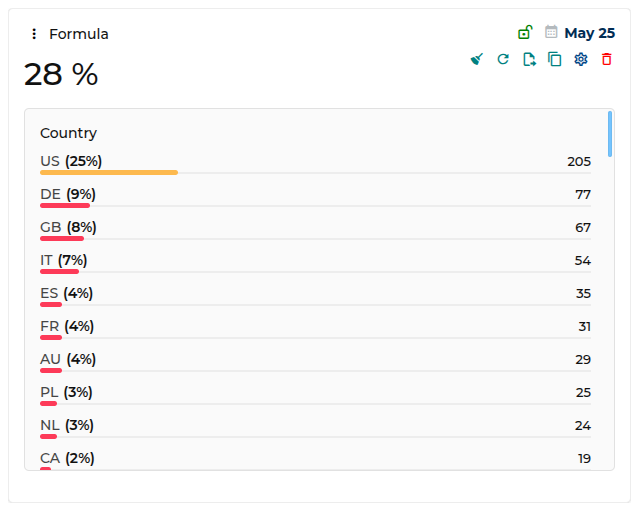
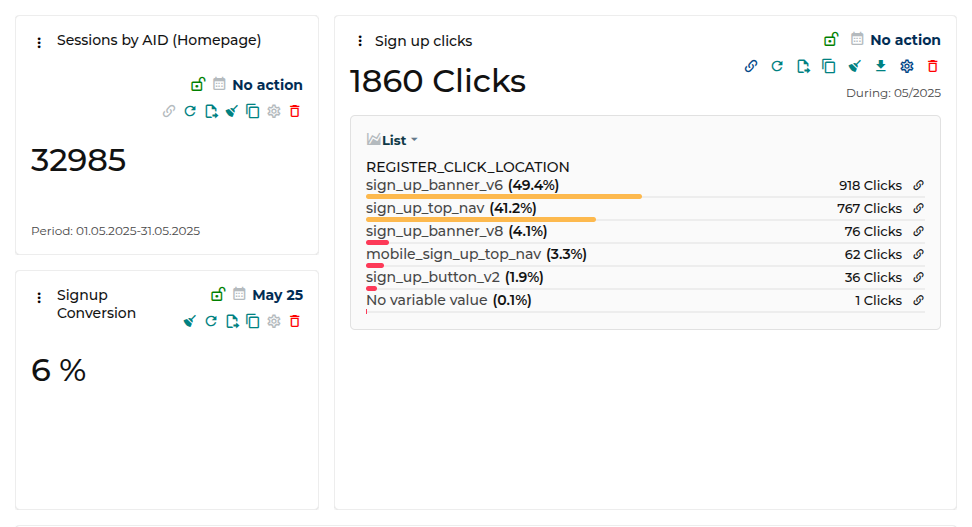
Available widget actions:
- Move it: Move widget to new position on group grids.
- Lock date range: Lock the selected time period for the widget.

- Unlock date range: Unlock the selected time period for the widget.
- Calendar: Changes the time period for the widget.
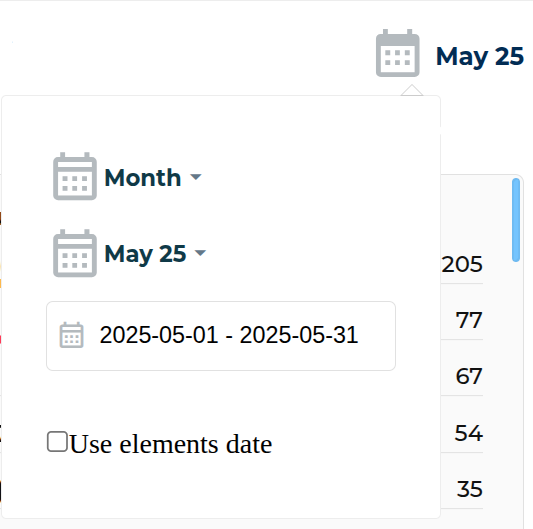
- Link: Link to a Recorded Sessions page with filtering based on the specified widget parameters.

- Refresh: Refresh data for current widget.

- Move: Opens a modal window in which a group is selected for moving the widget.

- Clone: Clone the current widget.

- Clear cache: Clearing cache for current widget.

- Download: Downloads an excel file with data for the current widget.

- Edit: Opens a modal window for editing the widget.

- Delete: Deletes the current widget.
