URL analytics
Intro
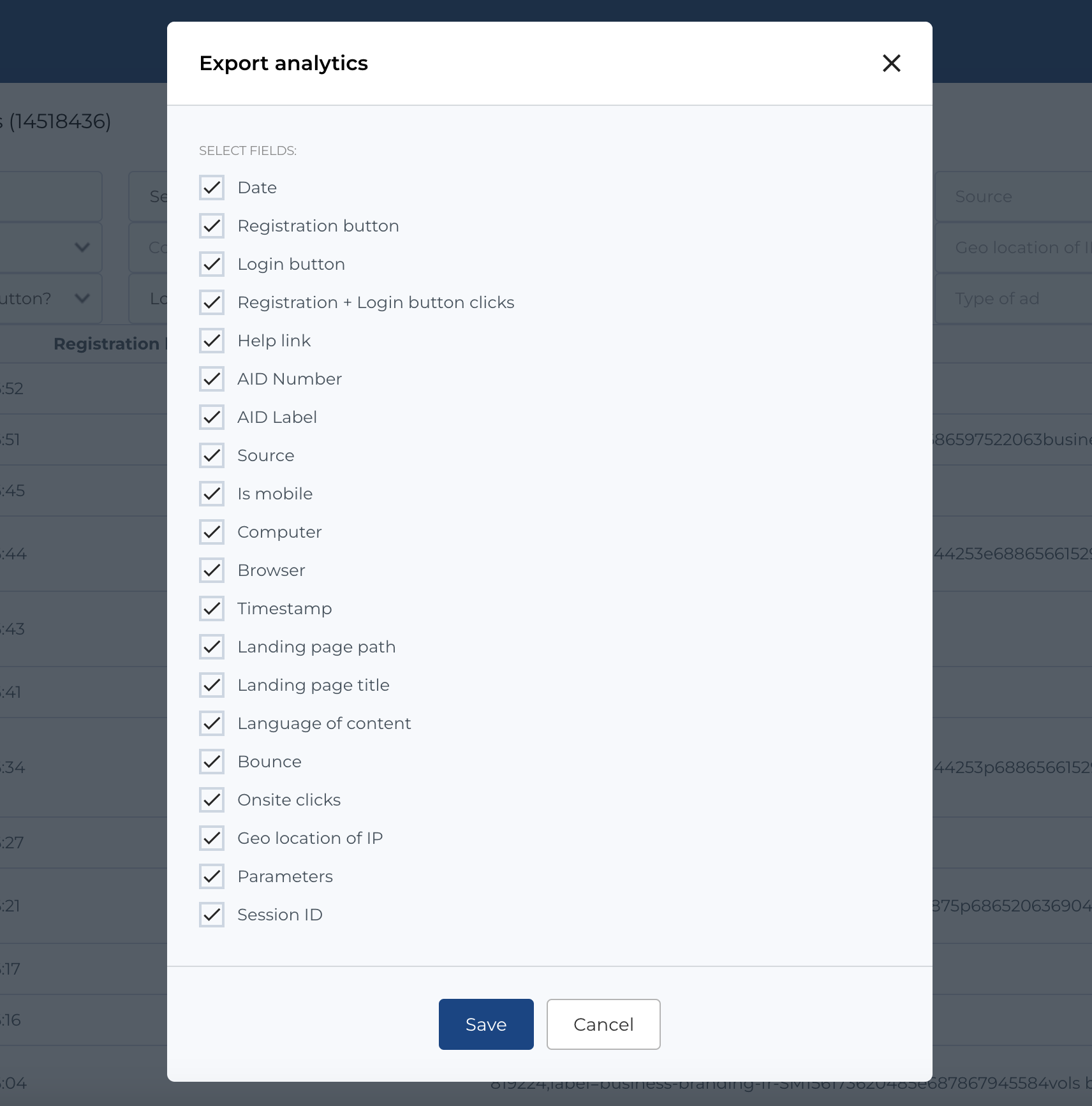
The URL Analytics List provides a comprehensive table of data related to user interactions with specific URL parameters like AID number, label (where can be information about OS, geo, etc.). It tracks key metrics such as button clicks, and user details, allowing for detailed analysis of user behavior and campaign performance. CMS tracks last user visit and overrides previous one information.
URL analytics list
The table contains the following columns:
- Date: The date when the analytics data was recorded.
- Registration Button: Tracks whether the registration button was clicked (how many clicks).
- Login Button: Tracks whether the login button was clicked (how many clicks).
- Help Link: Tracks whether the help link was clicked (how many clicks).
- AID Number: AID number.
- AID Label: A label parameter from URL.
- Source: The source of the traffic (e.g., business.booking.com).
-
Is Mobile: Indicates whether the user was on a mobile device (
YesorNo). - Computer: The type of computer or operating system the user was using.
- Browser: The browser used by the user (e.g., Chrome, Firefox).
- Timestamp: The exact time when the analytics data was captured.
- Landing Page Path: The URL path of the landing page.
- Landing Page Title: The title of the landing page where the user entered.
- Language of Content: The language of the content viewed by the user.
- Type of Ad: The type of advertisement or campaign that directed the user to the URL.
- Bounce: Indicates whether the user bounced (i.e., left after viewing a single page).
- Onsite Clicks: The number of clicks the user made while on the site.
- Geo Location of IP: The geographical location based on the user’s IP address.
- Parameters: Any additional URL parameters or query strings associated with the session.
Filters
The following filters allow for narrowing down the analytics data:
- Search: A general search field to filter by relevant terms.
- AID Number: Filter by specific AID numbers to view related users.
- From Date (Datepicker): Set a start date to filter data from this point in time.
- To Date (Datepicker): Set an end date to filter data up to this point.
- Source: Filter by the traffic source (e.g., business.booking.com).
-
Is Mobile (Dropdown): Filter by whether the user was on a mobile device (
YesorNo). - Computer: Filter by the type of computer or operating system used by the user.
- Browser: Filter by the specific browser used (e.g., Chrome, Safari, Firefox).
- Language of Content: Filter by the language of the content the user interacted with.
- Geolocation: Filter by geographical location based on the user’s IP address.
-
Registration Button (Dropdown): Filter by whether the registration button was clicked (
YesorNo). -
Login Button (Dropdown): Filter by whether the login button was clicked (
YesorNo). - Click From: Filter by the minimum number of clicks a user made on the site.
- Click To: Filter by the maximum number of clicks a user made on the site.
- Type of Ad: Filter by the type of advertisement or campaign that directed the user to the site.
These filters and columns allow for deep analysis of user behavior, ad performance, and user demographics, providing valuable insights for optimization and decision-making.
Export analytics
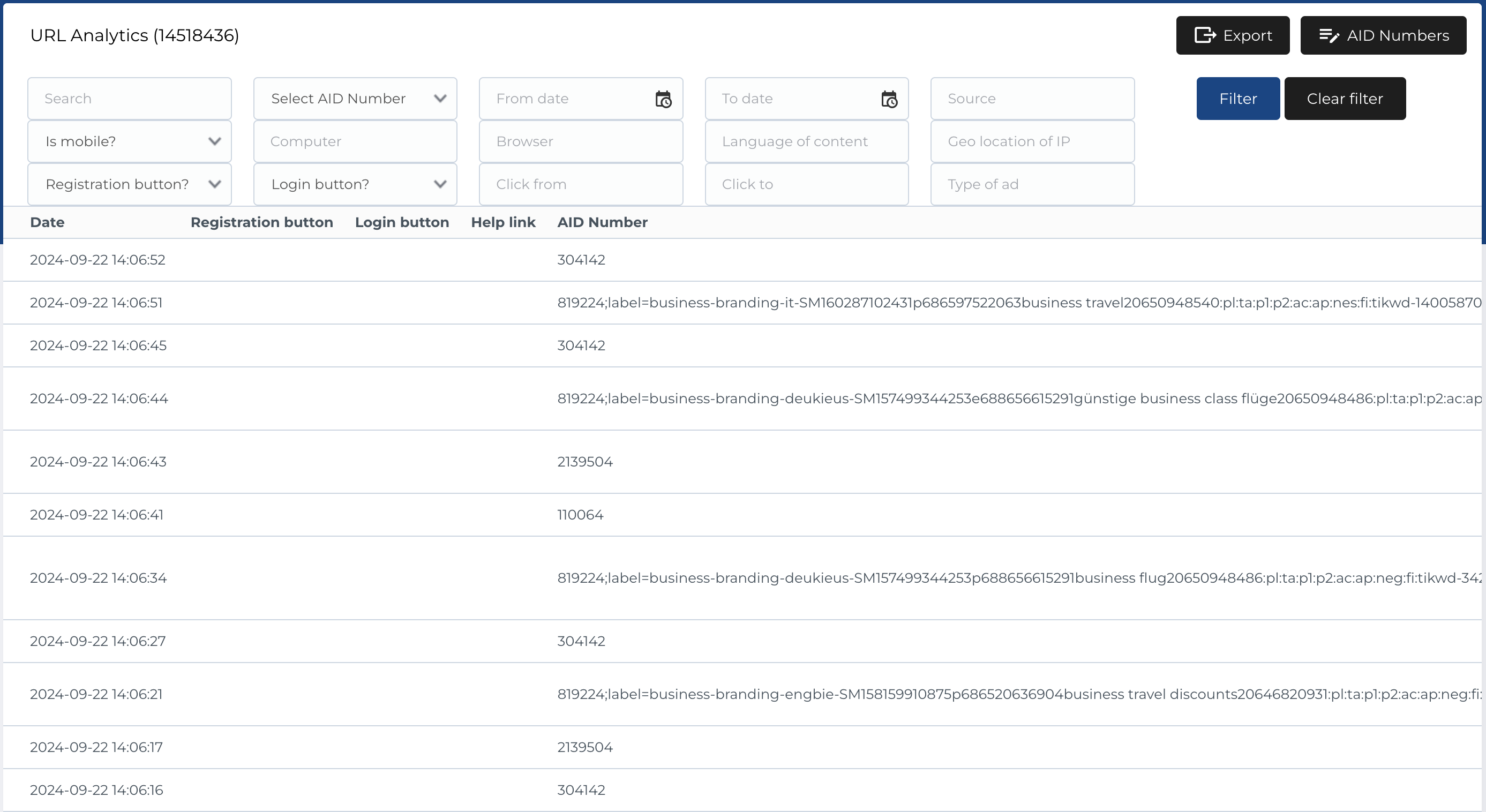
The Export Feature allows users to export analytics data in a customizable format. In the export modal, you can select specific columns to include in the export file, tailoring the output to your needs. This is especially useful for detailed reporting and further analysis in external tools.
Available Columns in Modal
When exporting data, the following columns can be selected for inclusion:
- Date: The date when the analytics data was recorded.
- Registration Button: Whether the registration button was clicked (count of clicks).
- Login Button: Whether the login button was clicked (count of clicks).
- Registration + Login Button Clicks: The combined count of registration and login button clicks.
- Help Link: Whether the help link was clicked (count of clicks).
- AID Number: The AID number.
- AID Label: A label from query parameters.
- Source: The traffic source.
-
Is Mobile: Indicates whether the user was on a mobile device (
YesorNo). - Computer: The type of computer or operating system used by the user.
- Browser: The browser used by the user (e.g., Chrome, Firefox, Safari).
- Timestamp: The exact time when the analytics data was captured.
- Landing Page Path: The URL path of the landing page where the user first arrived.
- Landing Page Title: The title of the landing page the user interacted with.
- Language of Content: The language of the content that the user viewed.
- Bounce: Indicates whether the user bounced (i.e., left after viewing a single page).
- Onsite Clicks: The number of clicks made by the user while on the site.
- Geo Location of IP: The geographical location of the user based on their IP address.
- Parameters: Any additional URL parameters or query strings associated with the session.
- Session ID: A unique identifier for the user's session during their interaction.
How to Use the Export Modal
- Open the Modal: Click the Export button to open the modal where you can configure your export.
- Select Columns: Choose the columns you want to include in your export by checking the boxes next to each column name.
- Export Data: Once you’ve selected the desired columns, confirm the export to generate a file (typically in CSV format) containing the selected data.
This export feature offers flexibility by allowing users to extract only the necessary data points for reporting or analysis, streamlining workflows and improving data management.