Technical introduction
Dashboard
Languages & Translations
Pages
Blocks
Menus
Content
Libraries sections
MemSource Integration
Log actions
Configurations
Form requests
Form contact
AB service
Travel Policy Builder
Mouseflow
Page analytics
Intro
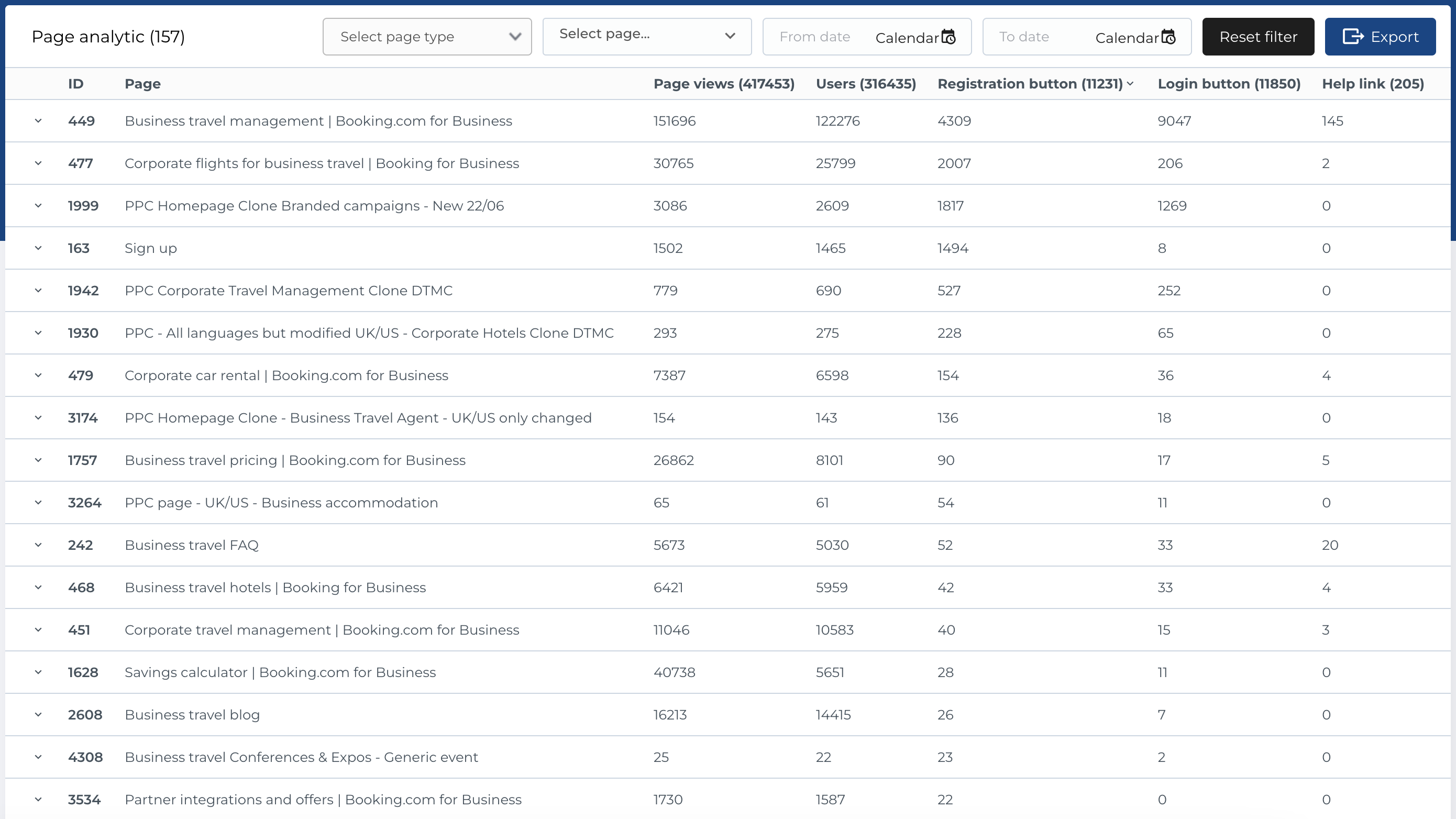
The Page Analytics section in the admin panel displays a list of page performance data, allowing users to view key metrics such as page views, user interactions, and button clicks.
Page analytics list
The table contains the following columns:
- ID: The unique identifier for the page entry.
- Page: The name or locale (if expand page) of the page being tracked.
- Page Views: The total number of views for the page.
- Users: The total number of unique users who visited the page.
- Registration button: The number of clicks on the Registration button.
- Login Button: The number of clicks on the Login button.
- Help Link: The number of clicks on the Help link.
Available Actions
The following actions are available for filtering and searching the analytics data:
- Filter by Page Type: A dropdown to filter data by the type of page (e.g., Static, Post, etc.).
- Filter by Page: A dropdown or search field to filter by a specific page.
- Filter by Date Range: A date picker that allows you to filter results by Date From and Date To.
- Reset Filter: A button to reset all applied filters.
- Export: A button to export filtered entities.
- Sorting: You can sort the list by any available column by clicking on the column header (e.g., ID, Page, Page Views, Users, etc.).
Export analytics
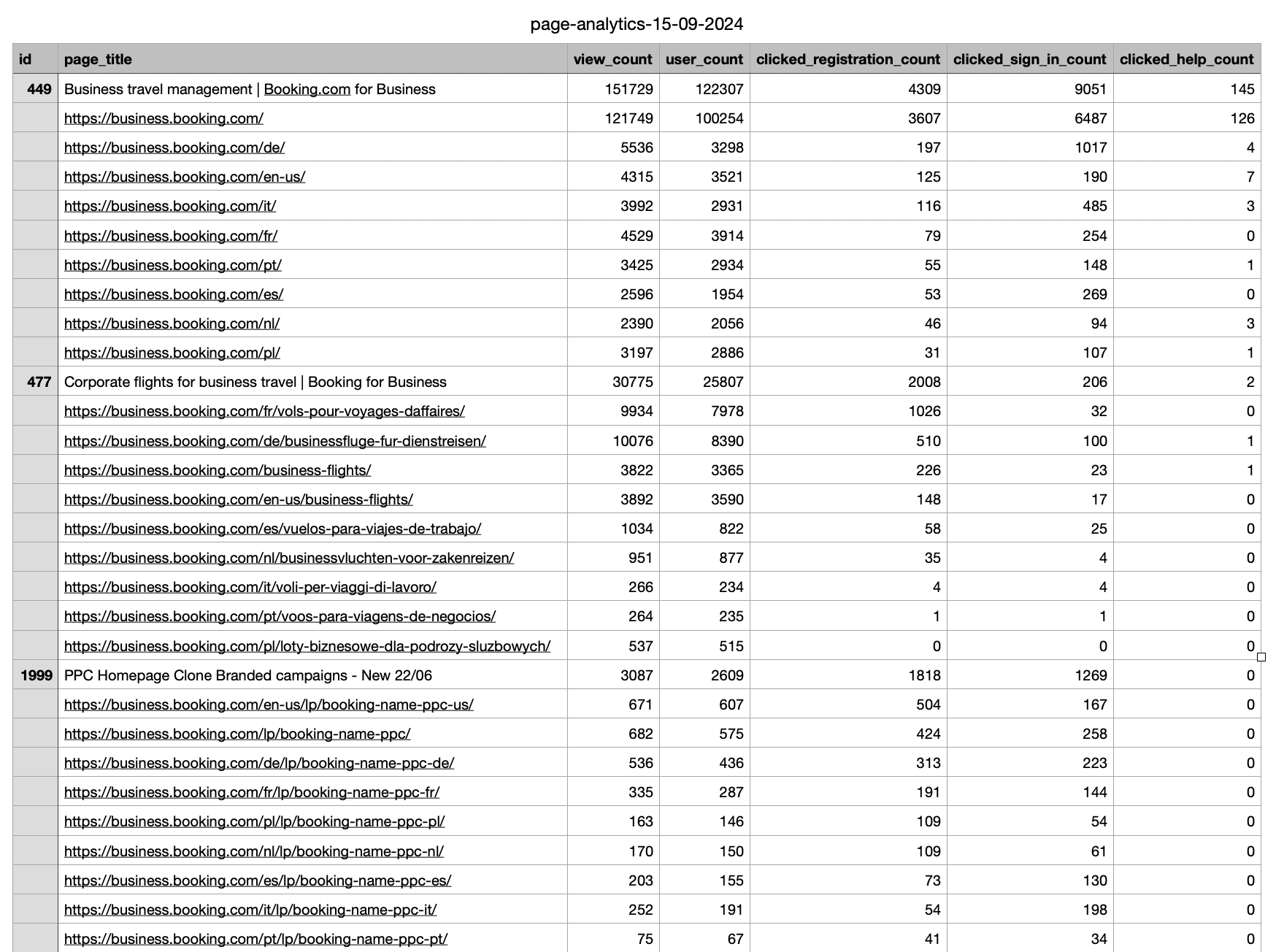
You can export the Page Analytics data to a CSV file for external analysis or reporting purposes. The export will include the following columns:
- ID: The unique identifier for the page analytics entry.
- Page: The name or URL (when page expanded) of the page being tracked.
- Page Views: The total number of views for the page.
- Users: The total number of unique users who visited the page.
- Registration button: The number of clicks on the Registration button.
- Login Button: The number of clicks on the Login button.
- Help Link: The number of clicks on the Help link.