Technical introduction
Dashboard
Languages & Translations
Pages
Blocks
Menus
Content
Libraries sections
MemSource Integration
Log actions
Configurations
Form requests
Form contact
AB service
Travel Policy Builder
Mouseflow
Files library
- Intro #1
- Files list #2
- Adding a file to the File Library #3
- Limitations on files to be uploaded. #4
- Edit existing file #5
Intro
In the side menu on the admin panel we have a special section for uploading shared files that can be embedded in the pages and links / buttons.
This section allows you to:
- Upload a new file
- Search through the files
- Filter by extension (ex:
.pdf) - Filter by date
Files list
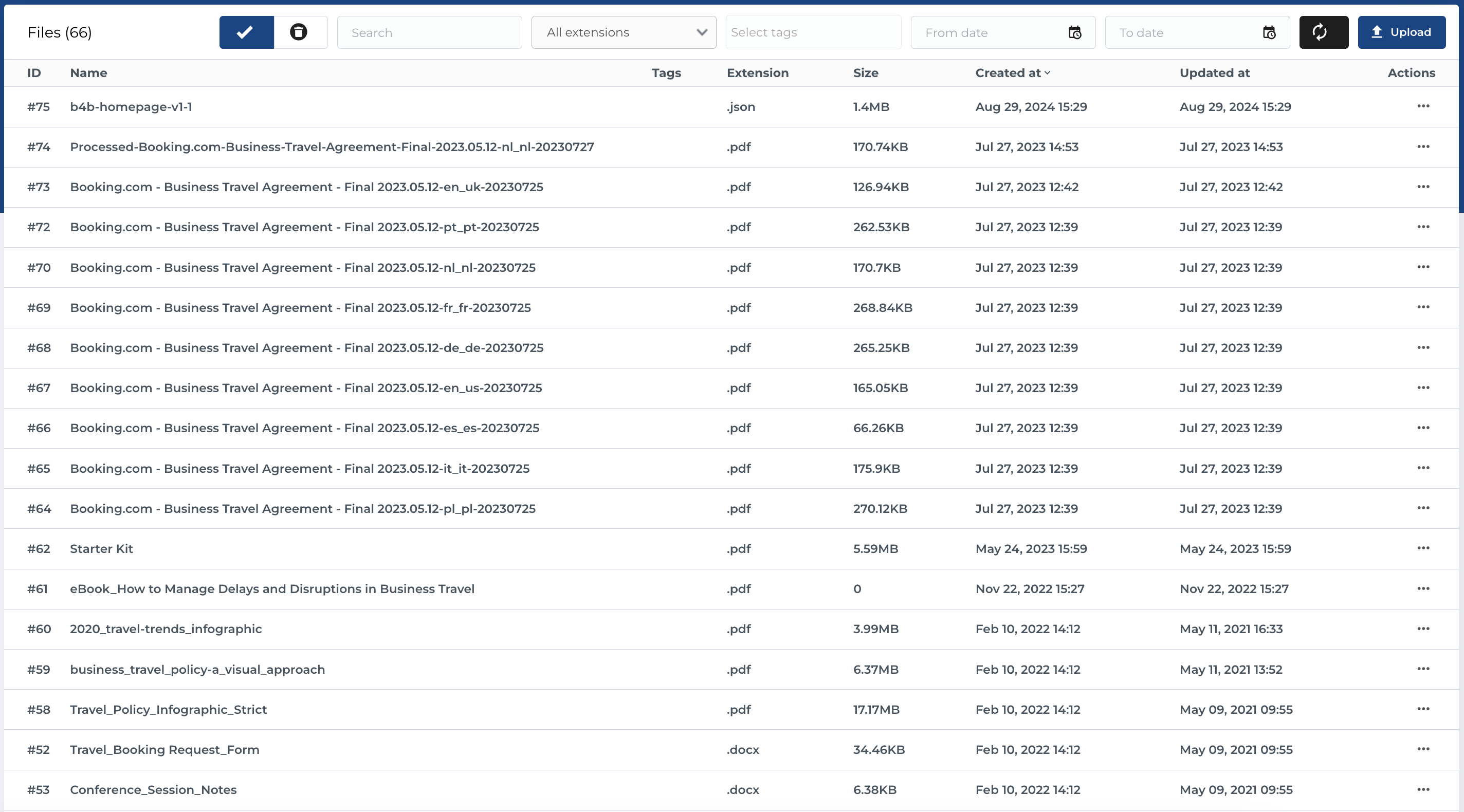
The section contains list of files and has next columns:
- ID
- Name
- Tags
- Extension
- Size
- Created at
- Updated at
- Actions
The table has next actions:
- active / bin switcher (you can move entity to the bin and after restore or finally delete it)
- search (by Name)
- filter by extension (dropdown with extensions)
- filter by creation date (date picker
fromand date pickerto) - clear filters button
- upload new file button
Upload -
Clear binbutton (in bin section) - edit existing entity
- move to bin
- restore entity (in bin section)
- delete entity (in bin section)
Adding a file to the File Library
Uploading a new file to the File Library happens with a standart multiselect, which will create the entities in the library after submission.
Limitations on files to be uploaded.
There are 2 types of limitations on the files to be uploaded:
1. Extension
On the platform can be uploaded files as
- Audio (.mp3, .wav, etc.)
- Video (.mp4)
- Documents (.docx, .xlsx, .pdf)
- In some cases scripting files (.js, .css)
2. File size
File size limitation is up to 100MB.
Edit existing file
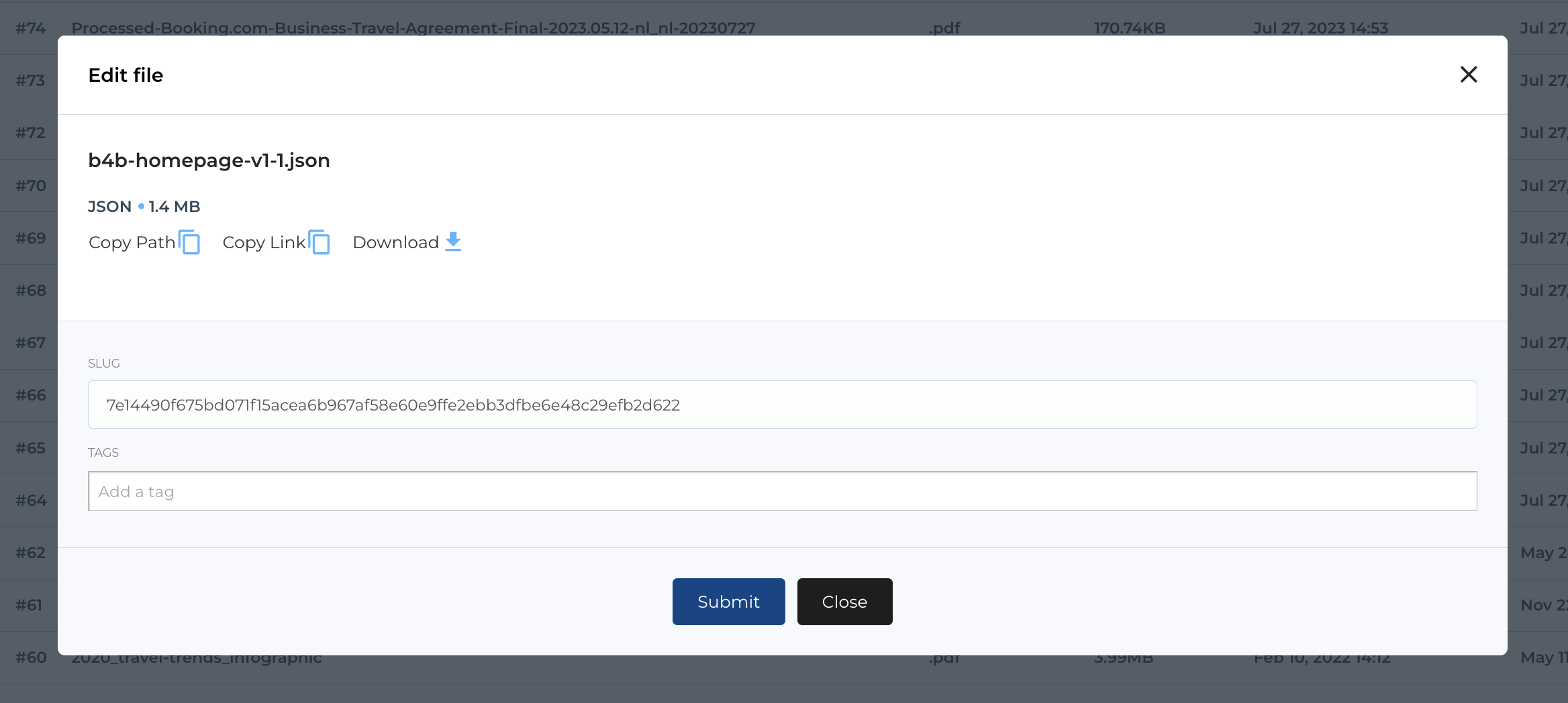
When you click Edit button in file row actions dropdown or by clicking file name in table, modal will be opened with next actions:
- Copy path (will copy to clipboard path of the file)
- Copy link (will copy to clipboard link of the file to download it)
- Download (will download file)
- You can change slug of file (UUID) in text field
Slug - Also some tags can be added (in multiselect
Tagswith ability to create new item by pressing enter after fill tag name)