
Page block (local) configuration
- Intro #1
- Create A/B block #2
- Edit link #3
- Convert to global block #4
- Convert to local block #5
- Copy block #6
- Delete block #7
Intro
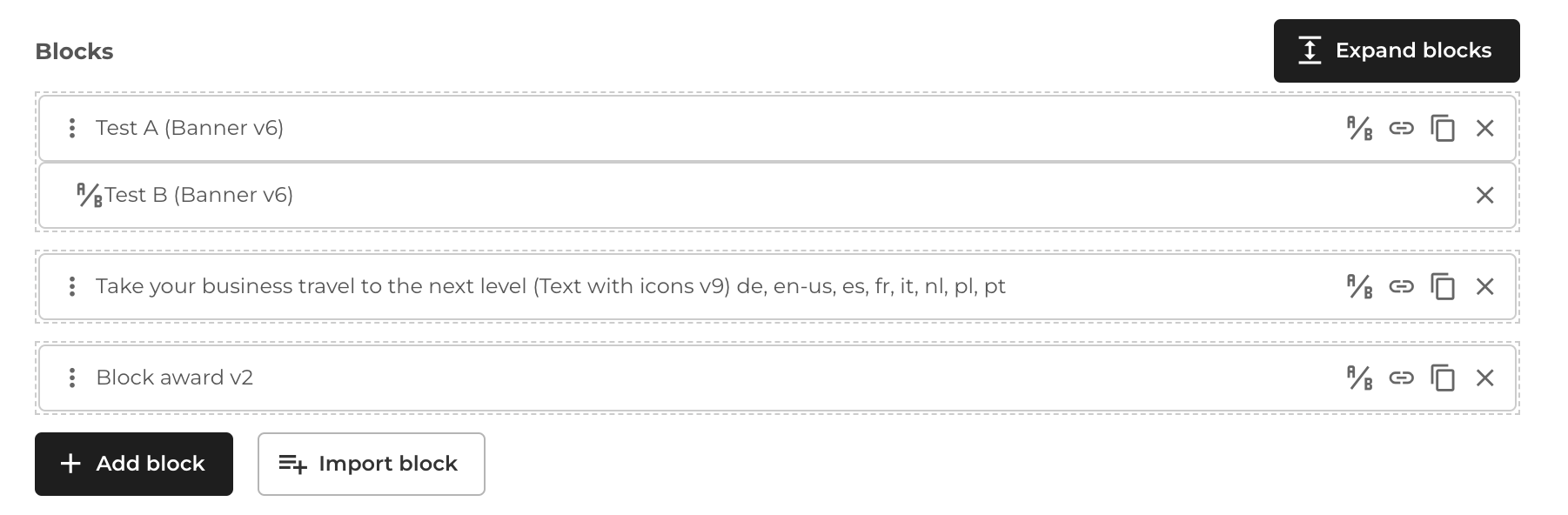
Each page block (local block) has some actions (icons on the right side of the block):
- Create A/B block
- Edit link (for global block)
- Convert to global block (for local block)
- Convert to local block (for global block)
- Copy block
- Delete block
Create A/B block
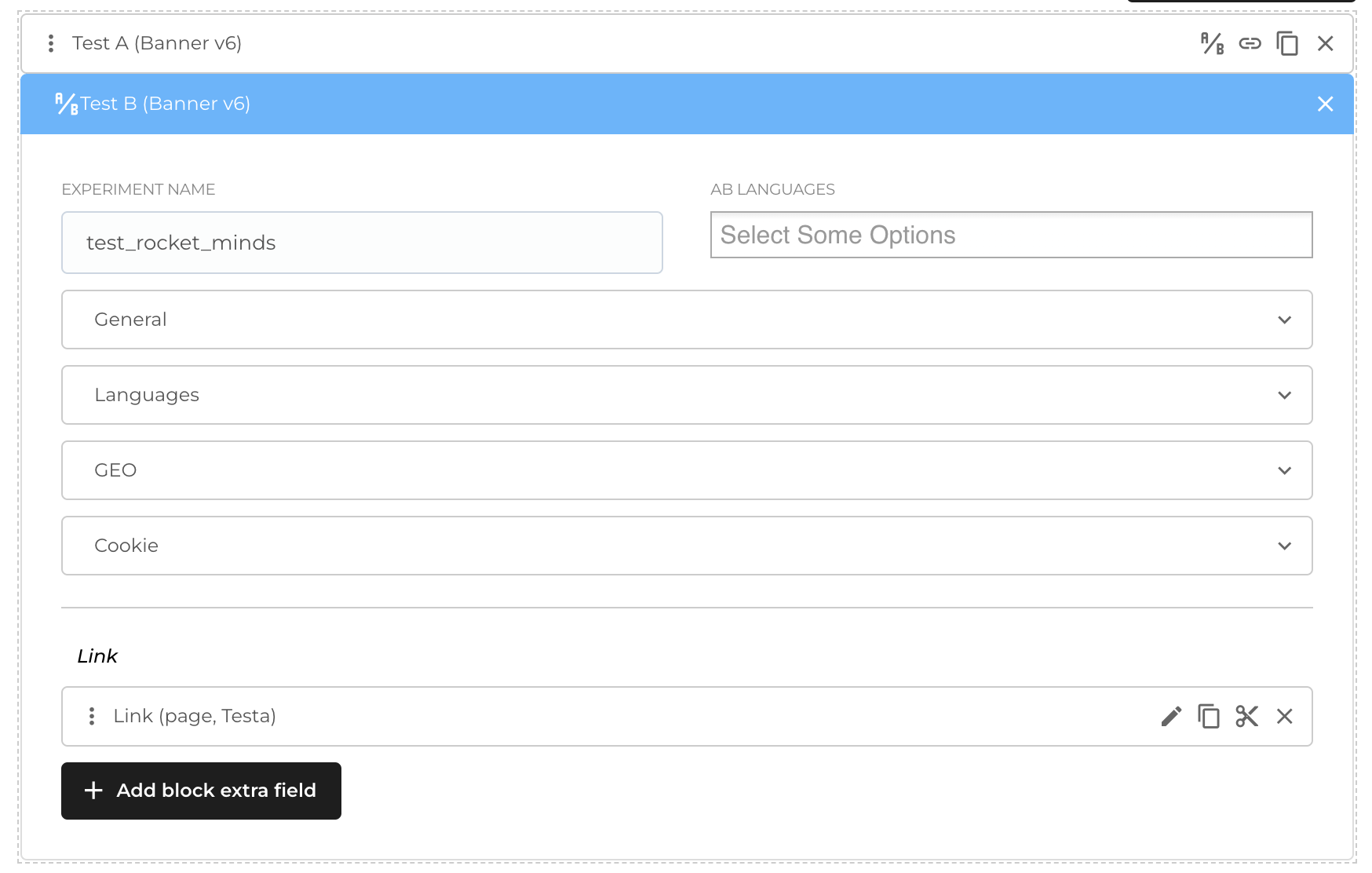
For each block you can create A/B block by clicking icon A/B - after, modal will be shown where you can select new block (same modal as described for block adding to the page). Now new block for A/B added, you can fill block fields and two specific columns:
- Experiment name
- A/B languages (multiselect list of available languages)
You can delete this A/B block by clicking X icon.
Edit link
By clicking this icon for global block, new tab in browser will be opened with global block edit page.
Convert to global block
If block is local - you can convert it to global one and use on other pages - for example if you found same block on other page and want to edit this block in one place, not on each page. After saving page form, block will be converted to global and connected to this page.
Convert to local block
If block is global - you can convert it to local one and this block will be used only on this page - for example if you want to add some changes, but don't want those changes to affect on other pages, where global block is connected. After saving page form, block will be converted to local and new changes was saved.
Copy block
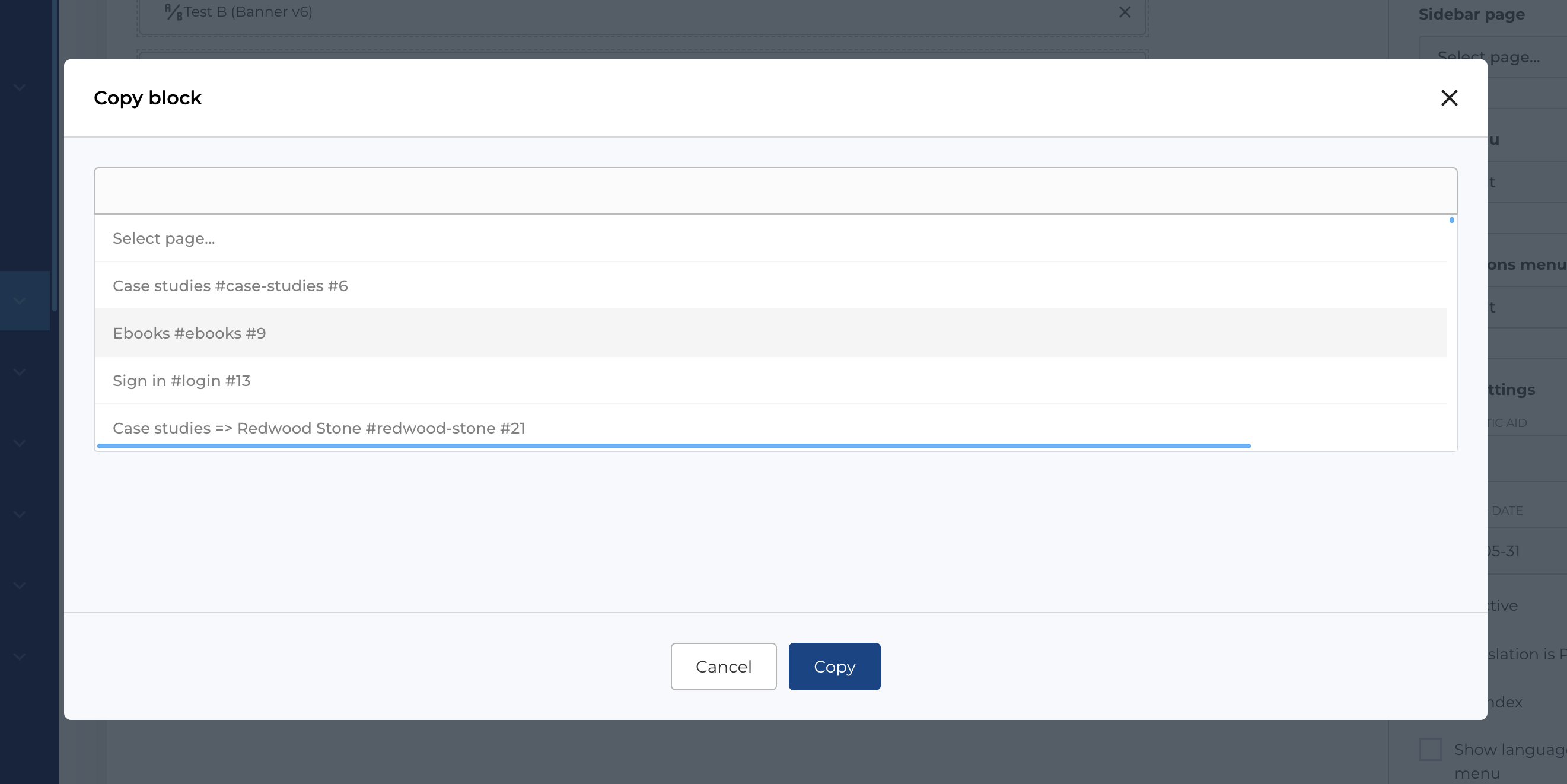
You can copy existing block (local) to other page. Click the copy icon, this will open a modal where you can select the page to copy this block to.
Delete block
You can delete the block from the page, if the block is global, it will simply be disconnected from the page, local - it will be deleted permanently.