
Partnerships
- Intro #1
- Partnerships list #2
- Create new partnership #3
- Send partnership to MemSource #4
- Partnership categories list #5
- Create new partnership category #6
- Partnership labels list #7
- Send all partnership labels to MemSource #8
- Create new partnership label #9
Intro
This section of the admin panel contains the Partnerships list, Partnership Labels, and Partnership Categories. Partnerships are used in various content blocks (such as Block Partnerships and Block Partnerships v2). You can filter partnerships by category, allowing for a more organized and targeted management of partnership entities.
Partnerships list
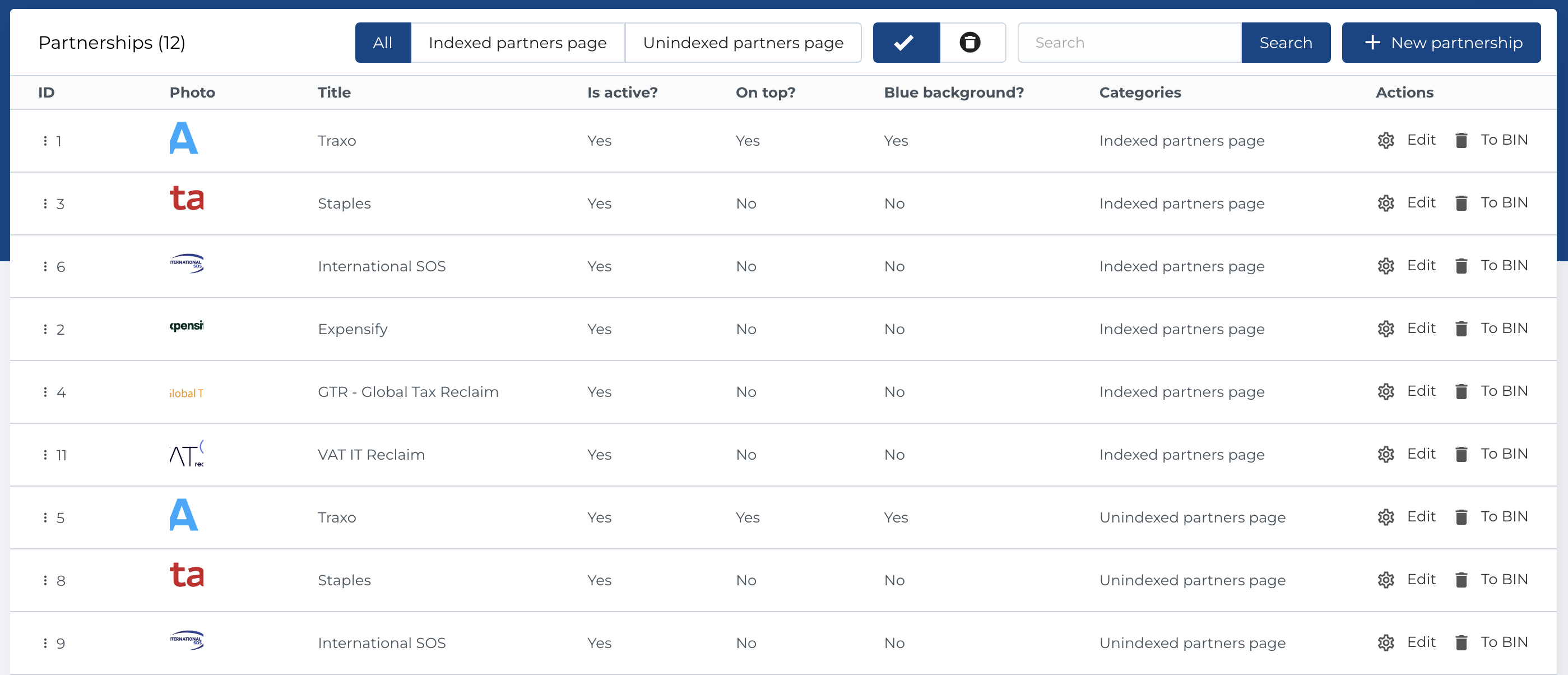
This section displays a table of all partnerships with the following columns:
- ID: Unique identifier for each partnership.
- Photo: An image associated with the partnership.
- Title: The title of the partnership.
- Is Active?: Indicates whether the partnership is currently active.
- On Top?: Specifies if the partnership is marked to appear at the top.
- Blue Background?: States if the partnership is displayed with a blue background.
- Categories: Categories the partnership belongs to.
- Actions: Options to manage the partnership.
Available Actions
- Filter by Categories: Tabs that allow filtering partnerships by specific categories.
- Active / Bin Toggle: Move partnerships to the bin (soft delete) or restore them, with the option to permanently delete.
- Search: Search by title or description.
- Create New Partnership: Add a new partnership entity.
- Edit Existing Partnership: Modify an existing partnership.
- Move to Bin: Temporarily remove a partnership.
- Restore: Reinstate a partnership from the bin.
- Delete: Permanently delete a partnership (only available in the bin section).
- Sort Entities: Drag and drop partnerships to reorder them, using the three-dot icon next to the ID.
Create new partnership
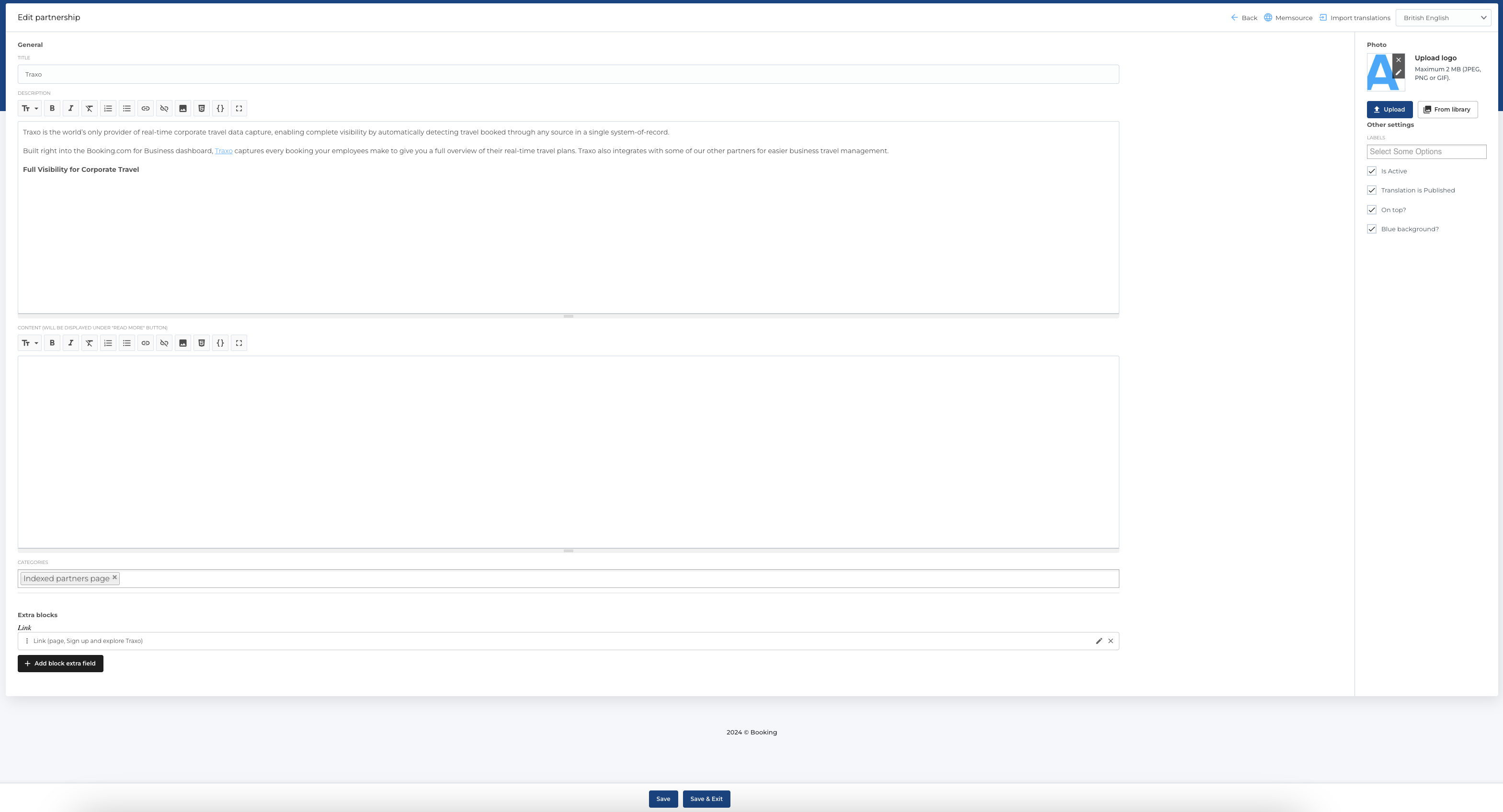
The form for creating a new partnership includes the following fields:
- Title: The partnership title.
- Description: Partnership description, written in Markdown.
- Content: Additional content in Markdown format.
- Categories: Select one or more categories for the partnership (multiselect).
- Extra Blocks: Optional blocks like links that can be added to the partnership.
- Photo: Upload an image for the partnership.
- Labels: Assign one or more labels (multiselect).
- Is Active: Checkbox to activate or deactivate the partnership.
- Translation is Published: Checkbox to mark if the translation is published.
- On Top?: Checkbox to pin the partnership at the top of the list.
- Blue Background?: Checkbox to apply a blue background to the partnership display.
Required Fields
- Title
- Description
The edit form is identical to the create form. Also you can Import translations with button in the top.
Send partnership to MemSource
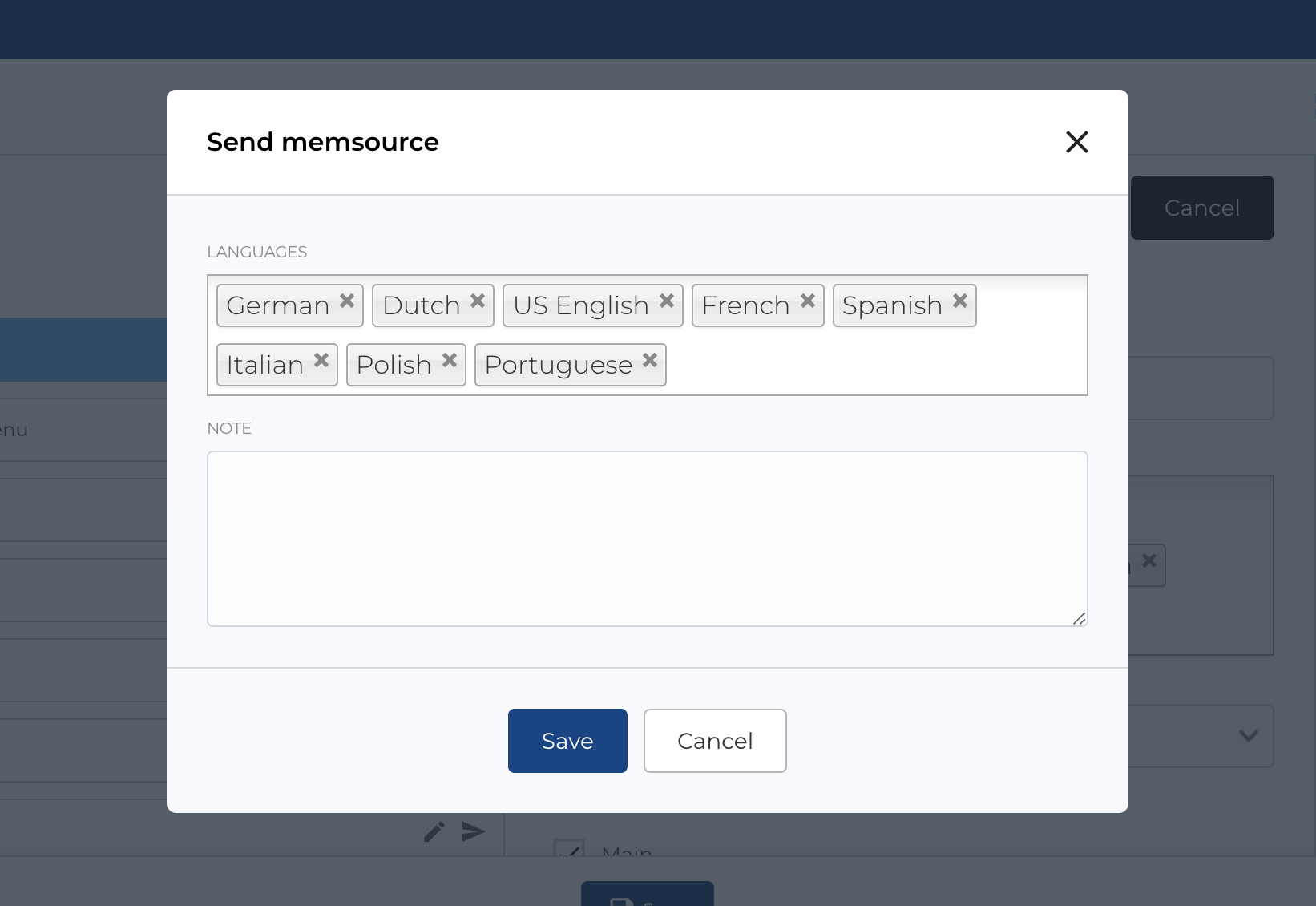
After creating a partnership, you can send it to MemSource for translation by clicking the MemSource button at the top of the edit page. This opens a modal with options to configure the translation process. You can specify languages for translation and add comments in the Notes field, which will be sent to MemSource.
Partnership categories list
This section displays a list of partnership categories with the following columns:
- ID: Unique identifier for each category.
- Title: The title of the category.
- Actions: Manage the category.
Available Actions
- Active / Bin Toggle: Move categories to the bin or restore them, with an option to permanently delete.
- Search: Search by category title.
- Create New Category: Add a new partnership category.
- Edit Existing Category: Modify an existing category.
- Move to Bin: Temporarily remove a category.
- Restore: Reinstate a category from the bin.
- Delete: Permanently delete a category (only available in the bin section).

Create new partnership category
The form for creating a new partnership category includes:
- Title: The title of the category.
- Partnerships: Select partnerships to associate with this category (multiselect).
Required Fields
- Title
The edit form is identical to the create form.

Partnership labels list
This section displays a list of partnership labels with the following columns:
- ID: Unique identifier for each label.
- Title: The title of the label.
- Actions: Manage the label.
Available Actions
- Active / Bin Toggle: Move labels to the bin or restore them, with an option to permanently delete.
- Send to MemSource: A button to initiate the translation process (explained below).
- Search: Search by label title.
- Create New Label: Add a new partnership label.
- Edit Existing Label: Modify an existing label.
- Move to Bin: Temporarily remove a label.
- Restore: Reinstate a label from the bin.
- Delete: Permanently delete a label (only available in the bin section).

Send all partnership labels to MemSource
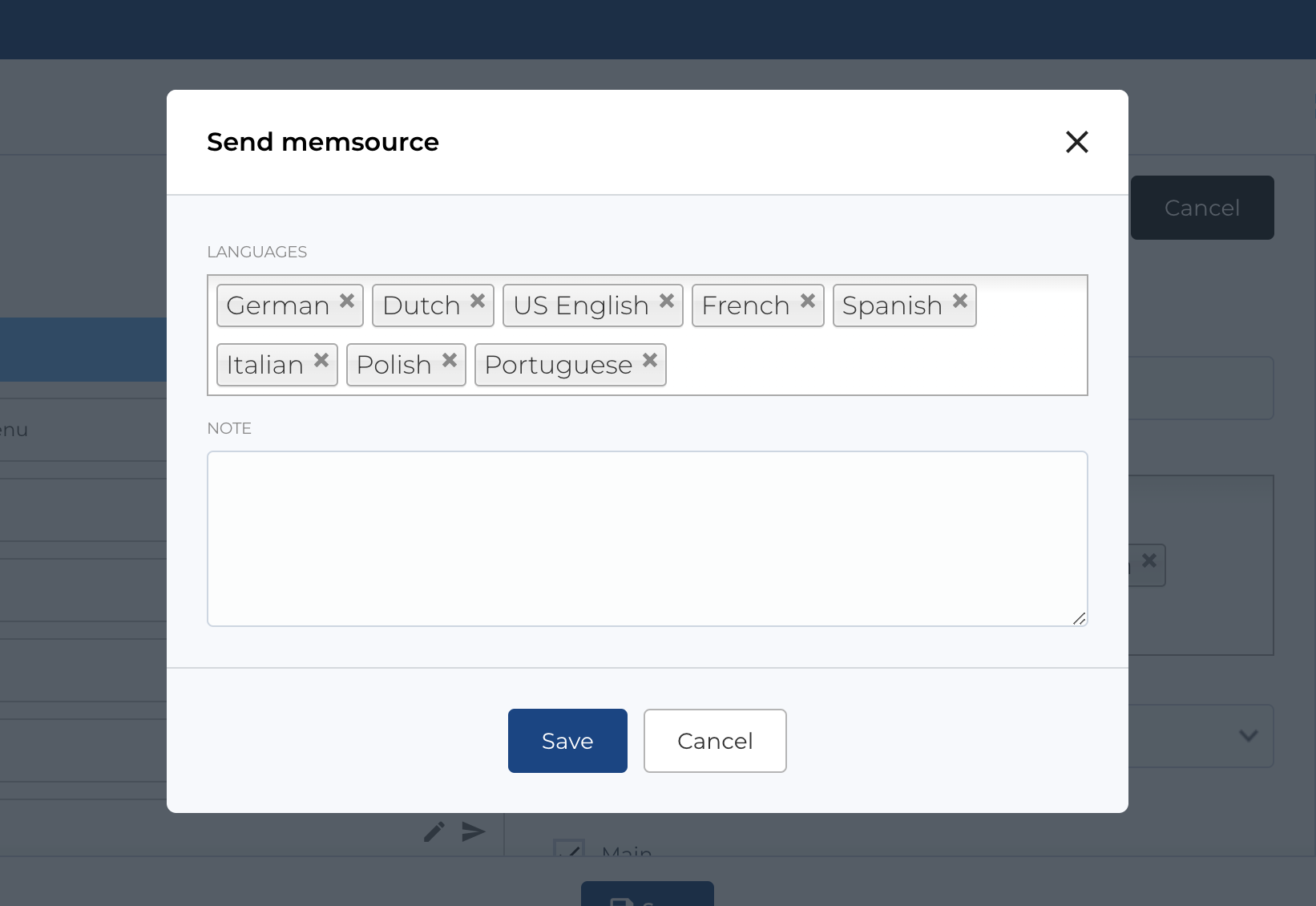
The Send to MemSource button is available on the Partnership Labels page. After clicking the button, a modal will open where you can configure translation options, specify the target languages, and add notes. These notes will be included in the translation request sent to MemSource.
Create new partnership label
The form for creating a new partnership label includes:
- Title: The title of the label.
Required Fields
- Title
The edit form is identical to the create form.
