Stories
- Intro #1
- Stories #2
- Send all stories to MemSource #3
- Create new story #4
- Story list table #5
- Send all story lists to MemSource #6
- Create new story list #7
Intro
The Stories section in the admin panel contains two main components: the Story List table and the Stories table. These elements are used in the Block Stories, where you can select a story list, and all the stories within that list will be displayed.
Stories
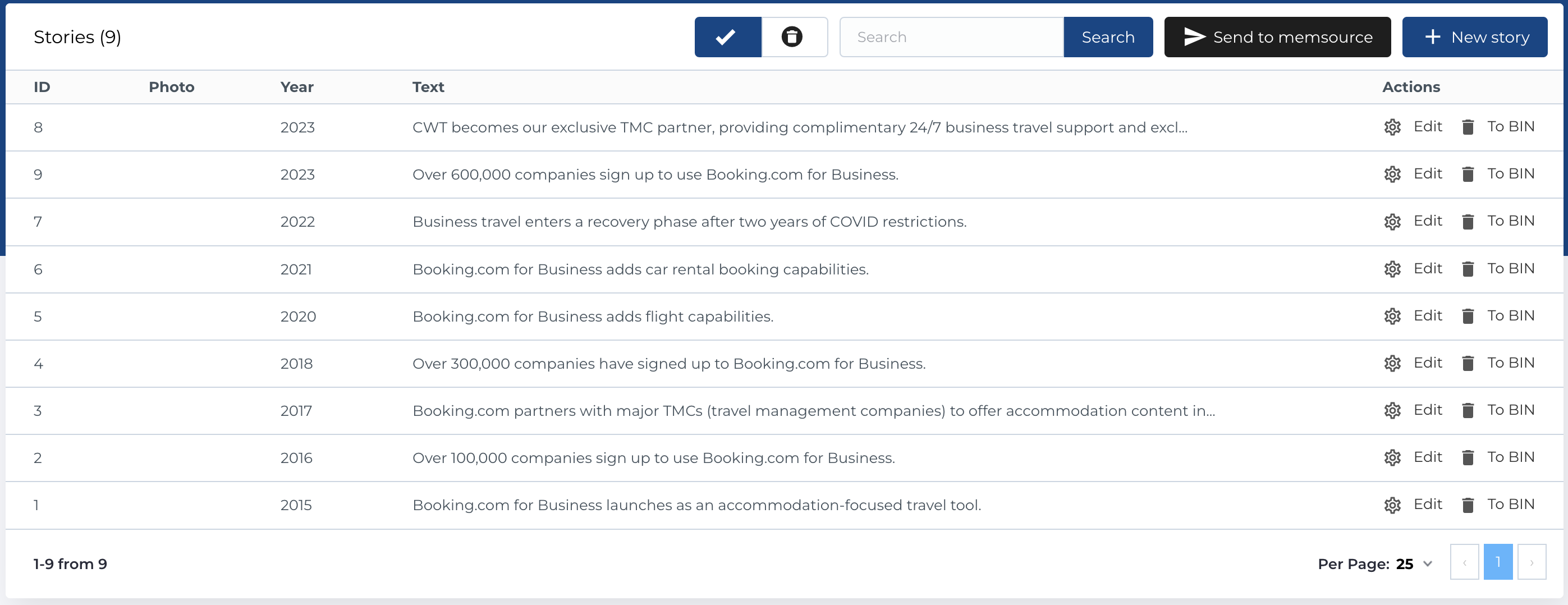
This section contains a list of all the individual stories and has next columns:
- ID: Unique identifier of the story.
- Photo: Associated image of the story.
- Year: The year associated with the story.
- Text: Main content or description of the story.
- Actions: Management buttons for the story entry.
Available Actions:
- Active / Bin Switcher: Move the story to the bin, where it can either be restored or permanently deleted.
- Search (By Text): Filter stories by their text content.
- Send to MemSource Button: Sends selected stories to MemSource for translation (described in detail below).
- Create New Entity: Open the form to add a new story.
- Edit Existing Entity: Modify an existing story.
- Move to Bin: Temporarily remove the story.
- Restore Entity: Recover a story from the bin.
- Delete Entity: Permanently delete a story.
Send all stories to MemSource
As mentioned in previous section, button Send to MemSource available on the Stories page at the top.
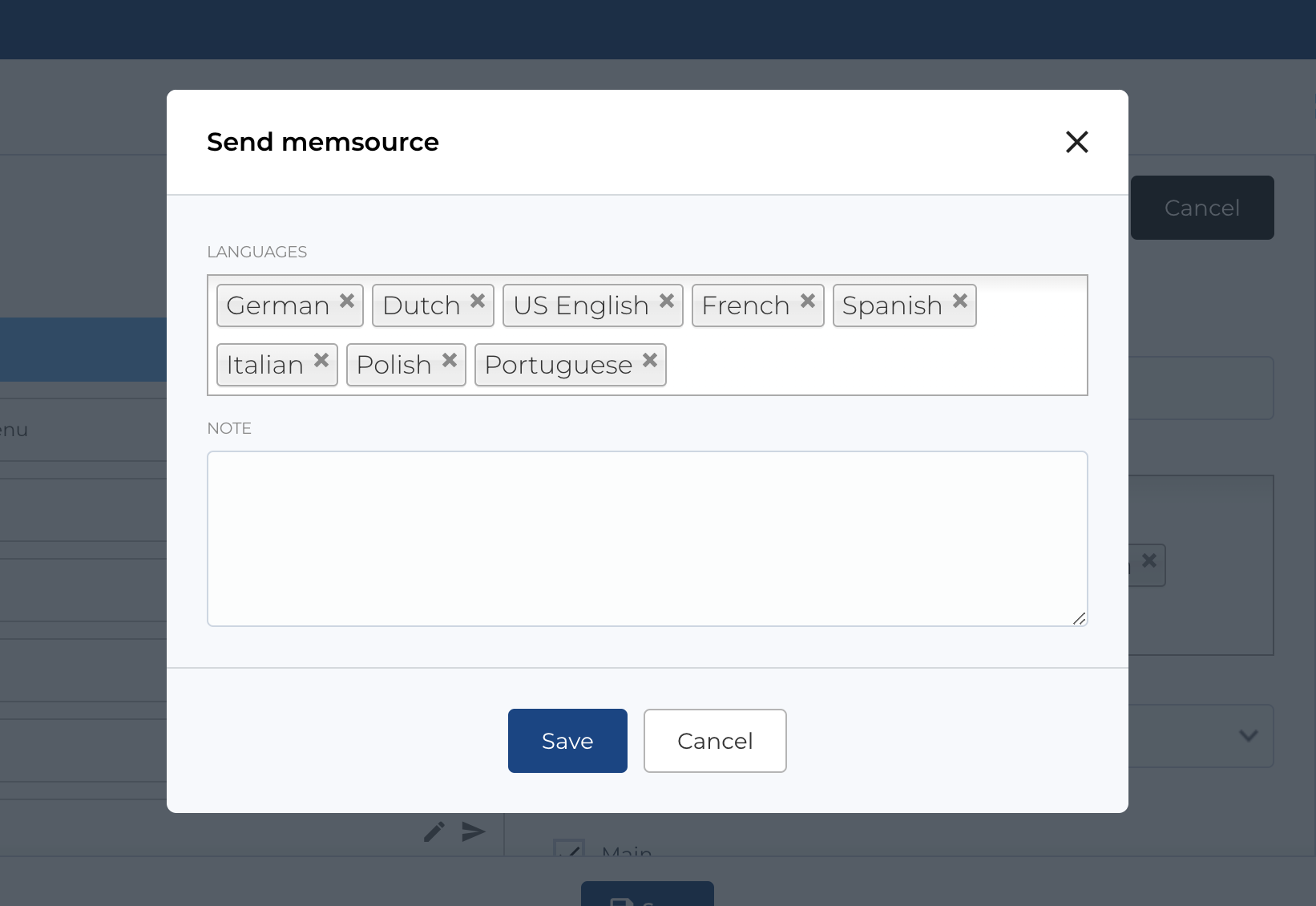
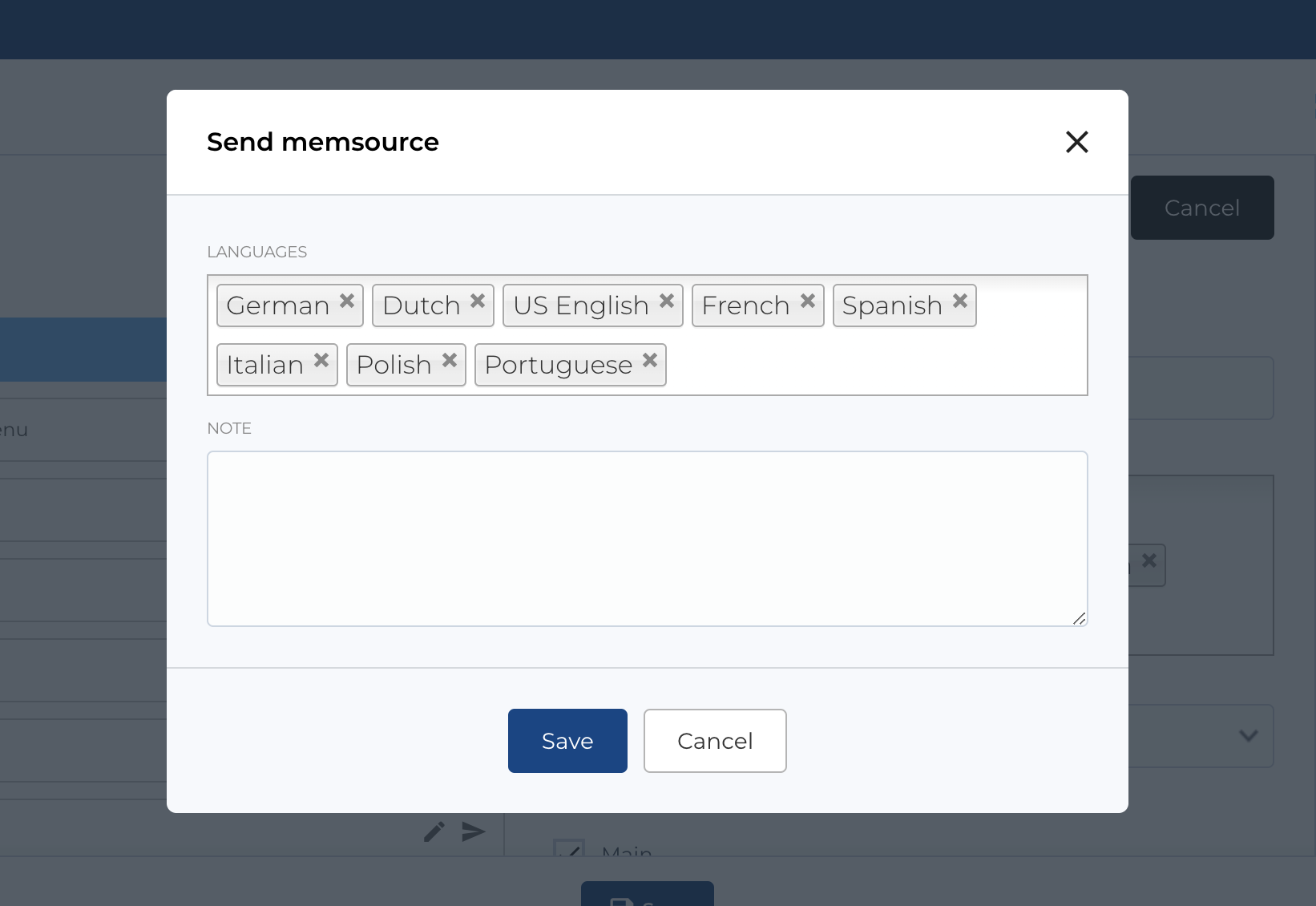
After clicking button, a modal will open and some configurations will be available.
You can specify menu translation languages and add comment in Note fields, whitch will be sent to MemSource.
Create new story
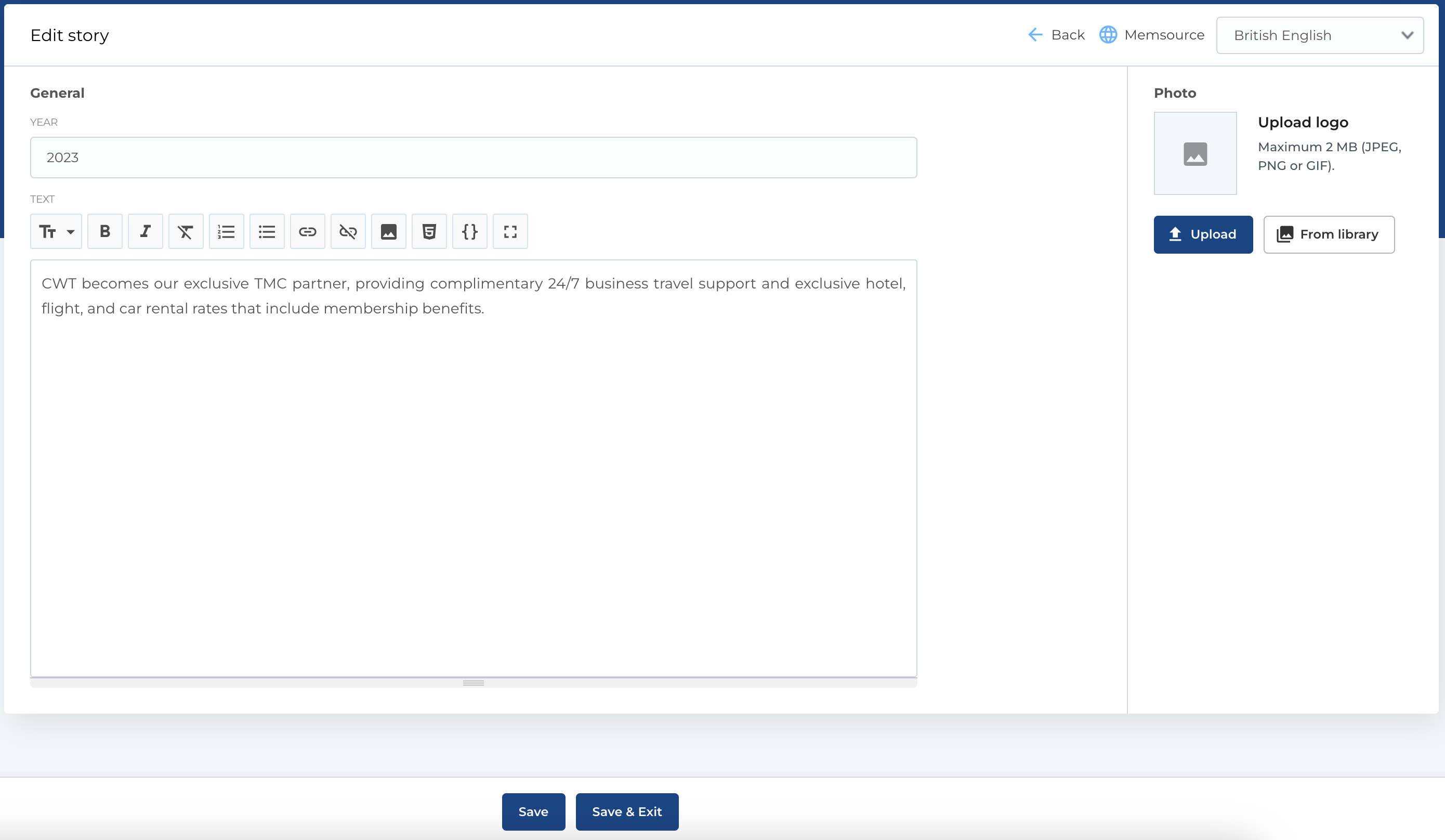
When creating a new story, the form includes fields to input essential details:
- Year: The year associated with the story.
- Text (Markdown): The main content of the story, formatted using Markdown.
- Photo (Image Picker): Option to upload a relevant image for the story.
Required Fields:
- Year: This field is mandatory.
- Text: This field is mandatory.
The edit form is identical to the creation form.
Story list table
The Story List contains a collection of story lists, which group multiple stories together. Table has columns:
- ID: Unique identifier of the story list.
- Name: Name of the story list.
- Actions: Management buttons for the story list entry.
Available Actions:
- Active / Bin Switcher: Move the story list to the bin, where it can either be restored or permanently deleted.
- Search (By Name): Filter story lists by their name.
- Send to MemSource Button: Sends selected story lists to MemSource for translation (described below).
- Create New Entity: Open the form to add a new story list.
- Edit Existing Entity: Modify an existing story list.
- Move to Bin: Temporarily remove the story list.
- Restore Entity: Recover a story list from the bin.
- Delete Entity: Permanently delete a story list.

Send all story lists to MemSource
As mentioned in previous section, button Send to MemSource available on the Story lists page at the top.
After clicking button, a modal will open and some configurations will be available.
You can specify menu translation languages and add comment in Note fields, whitch will be sent to MemSource.
Create new story list
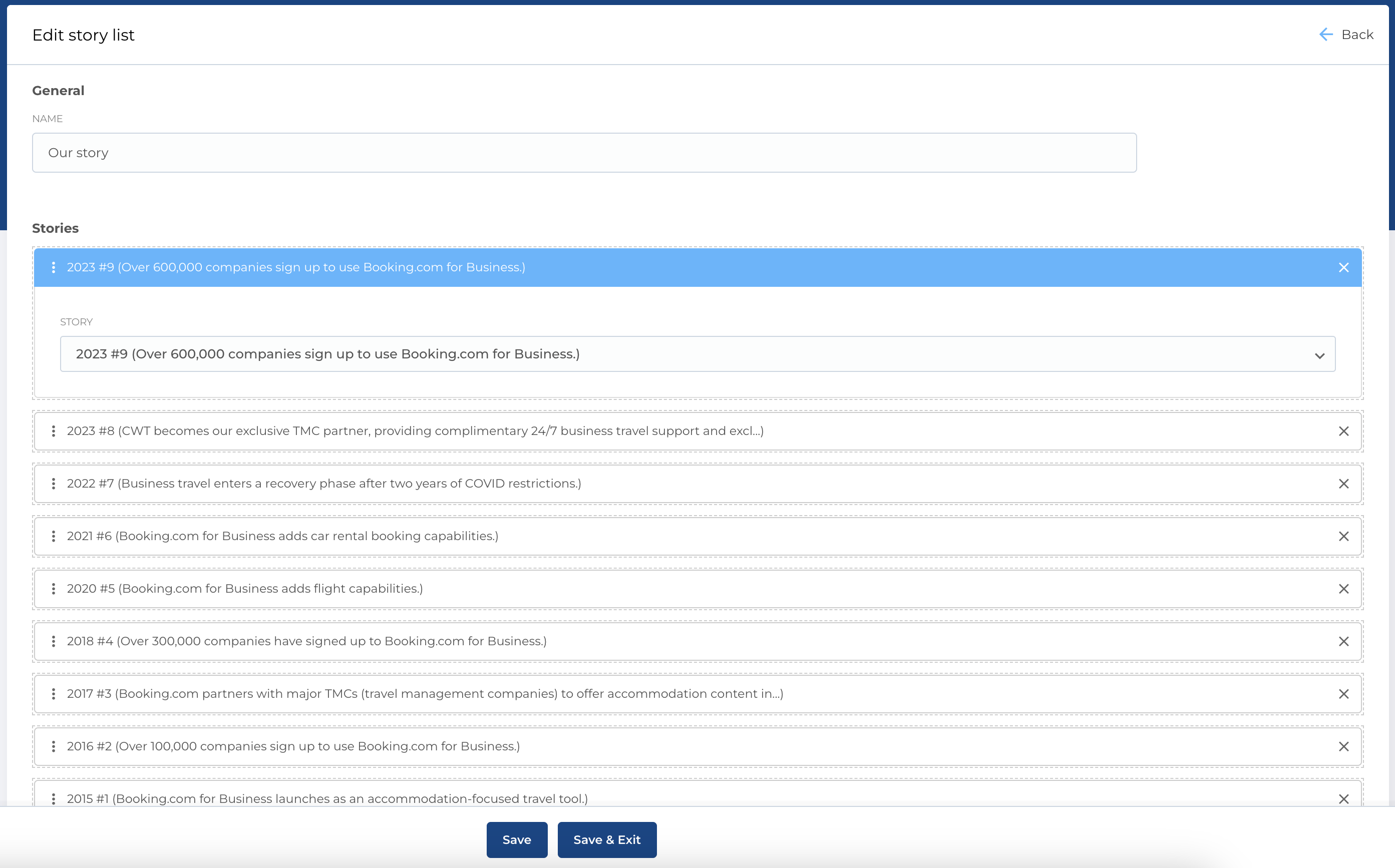
When creating a new story list, the form allows you to define its name and manage its items. You can fill next fields:
- Name: The name of the story list.
-
Stories: A list of stories, each one can be configured with the following actions:
- Sorting Stories: Reorder stories in the list.
- Select or Change Story: Click on a story item to expand it and use the dropdown to select or change the story.
-
Delete Story: Remove a story from the list by clicking the
xbutton. -
Add New Story: Add new stories using the
Add Storybutton at the bottom of the list.
Required Fields:
- Name: This field is mandatory.
The edit form is identical to the creation form.