Technical introduction
Dashboard
Languages & Translations
Pages
Blocks
Menus
Content
Libraries sections
MemSource Integration
Log actions
Configurations
Form requests
Form contact
AB service
Travel Policy Builder
Mouseflow
Resource filters
- Intro #1
- Resource filter list #2
- Send all resource filters to MemSource #3
- Create new resource filter #4
Intro
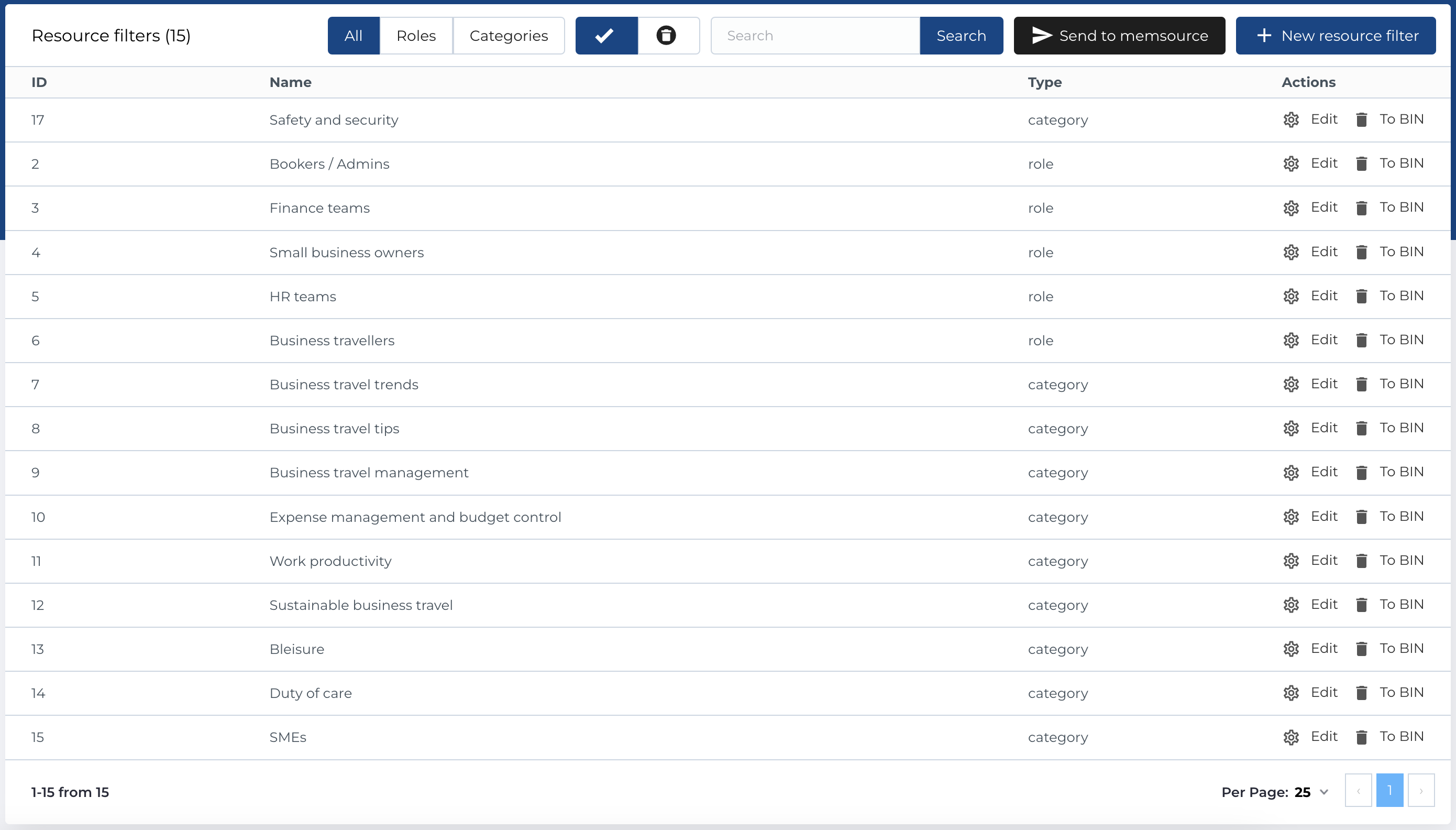
This section in admin panel consists of resource filter list.
Resource filter used on pages with type Post and on Resources hub pages as checkboxes to filter posts by resource filters.
Resource filter list
The section contains list of testimonials and has next columns:
- ID: Unique identifier for each resource filter.
- Name: The name of the resource filter.
- Type: The resource filter type.
- Actions: Manage resource filter records.
Available Actions
- Filter by type: Tabs that allow filtering resource by specific type, like All, Roles, Categories.
- Active / Bin Switcher: Move a testimonial to the bin, restore it, or permanently delete it.
- Search: Search by Name.
- Send to MemSource: A button to initiate the translation process (explained below).
- Create New Entity: Add a new resource filter.
- Edit Existing Entity: Modify an existing resource filter.
- Move to Bin: Temporarily remove a resource filter.
- Restore Entity: Reinstate a resource filter from the bin.
- Delete Entity: Permanently delete a resource filter (only available in the bin section).
Send all resource filters to MemSource
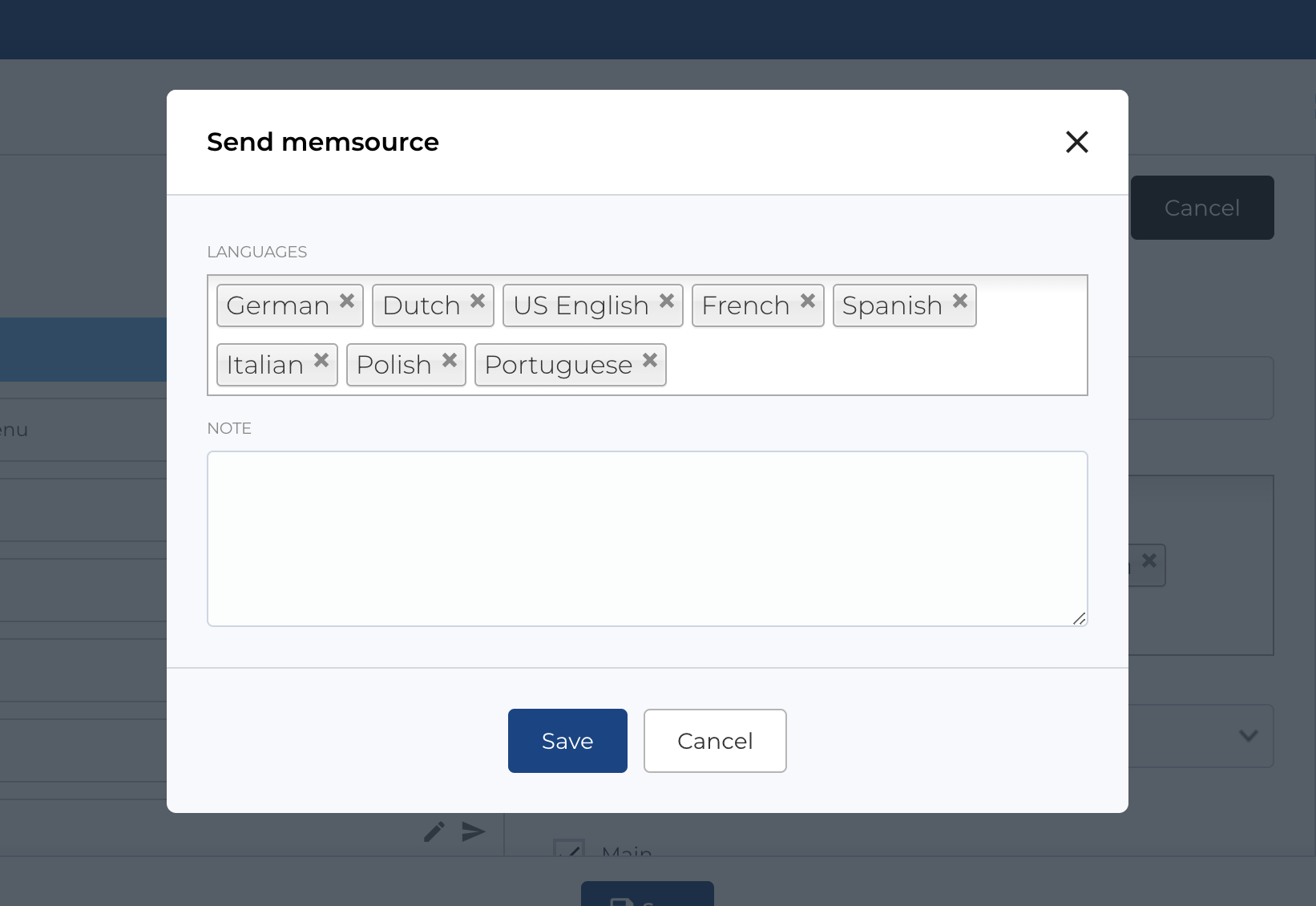
As mentioned in previous section, button Send to MemSource available on the Resource filter list page at the top.
After clicking button, a modal will open and some configurations will be available.
You can specify menu translation languages and add comment in Note fields, whitch will be sent to MemSource.
Create new resource filter
Form contains next fileds:
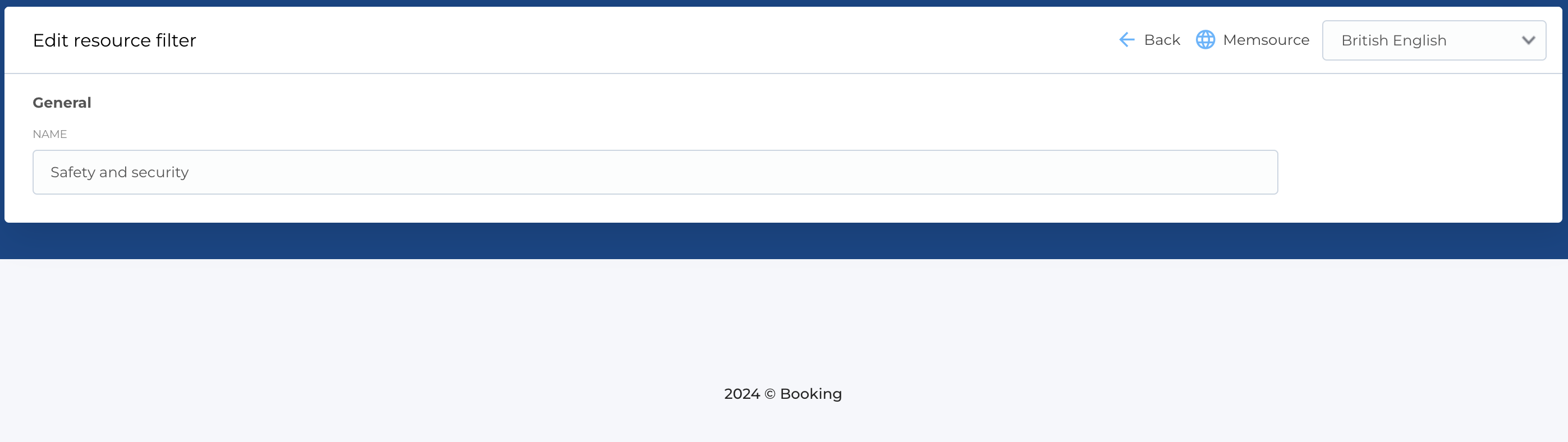
- Name: Name of the resource filter.
Required fields
- Name
Edit form is same as this one.