
Page edit
- Intro #1
- Intermediate version of a Page #2
- Actions #3
-
Sidebar #4
- Slug #4.1
- Slug history #4.2
- Slugs and multi-lingual module #4.3
- Parent page #4.4
- Other settings section #4.5
- Url analytic AID #4.6
- Published date #4.7
- Page is active / archived #4.8
- Translation publishing #4.9
- No-index #4.10
- Show languages selector in top menu #4.11
- Show sign up button #4.12
- Show login button #4.13
- Hide on mobile #4.14
- General fields #5
- Blocks #6
- Bottom buttons #7
Intro
Page editing can be divided into sections and described separately:
- Actions (in the top of the page edit)
- Right sidebar (page configurations)
- General (title, meta, etc.)
- Blocks section (list of blocks)
- Bottom buttons (for save and publish)
For a better understanding of the bottom button actions, as well as how changes are made and pages are published, it's important to know what an Intermediate Version of the page is. This concept is described in detail below.
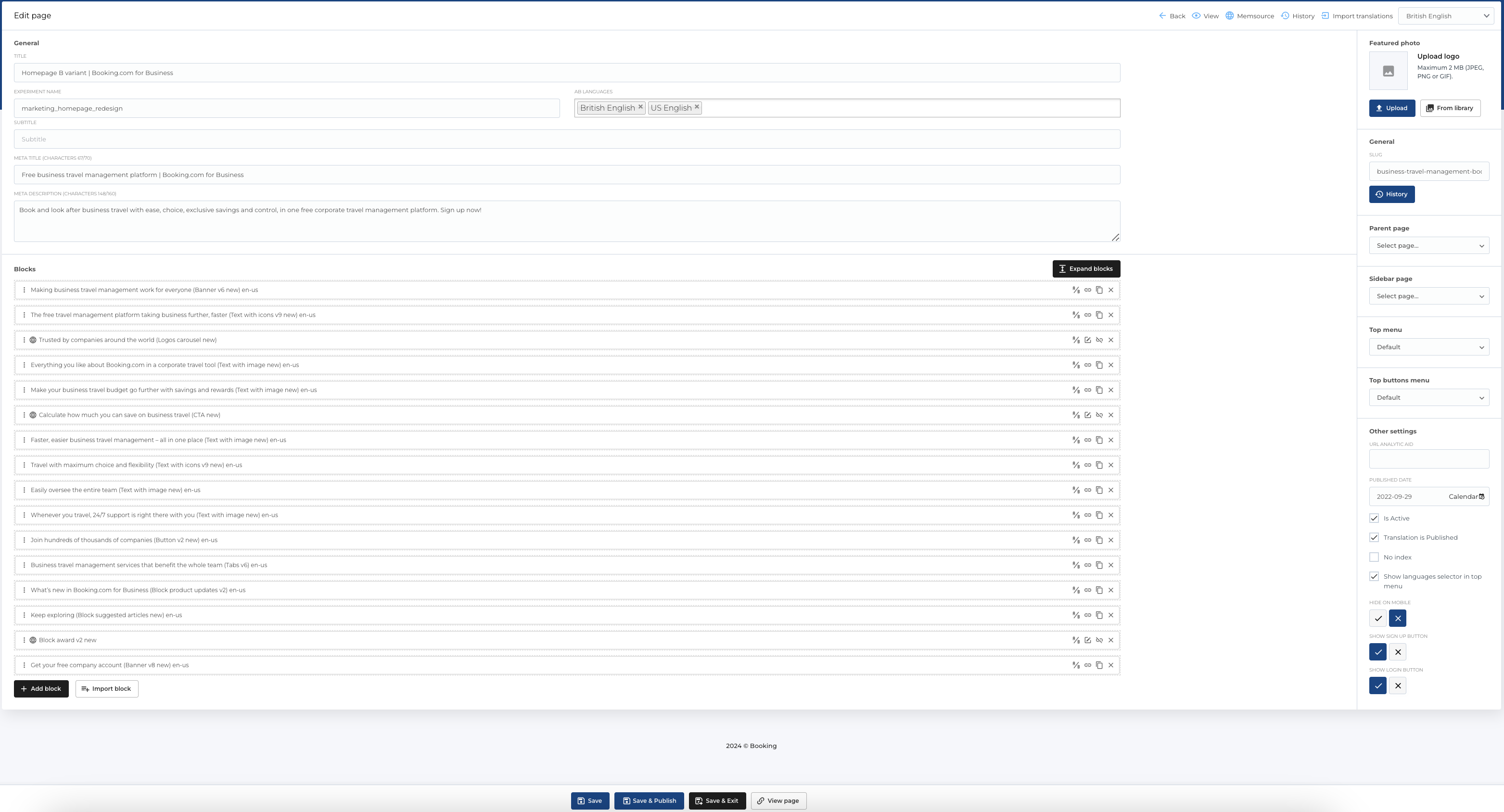
Intermediate version of a Page
An Intermediate Version of a page refers to a saved draft that hasn't been published yet. This allows content creators to make updates and revisions without immediately making those changes visible to the public.
When a page is published, it replaces the previous live version, but earlier versions can still be accessed via the Page History. This allows for easy restoration if needed.
Actions
When editing a page, several additional actions are available in the top bar:
- Back: Navigate to the previous page.
- View: Open the page in a new tab to view it from the front end.
- MemSource: Open a modal to send the page to Memsource for translation or localization.
- History: Access the Page History section, where you can restore the page to any previous version that was edited.
- Create A/B page - creates A/B page for current page.
- Import Translations: Open a modal to import translations into the current language from the selected language in the modal.

Sidebar
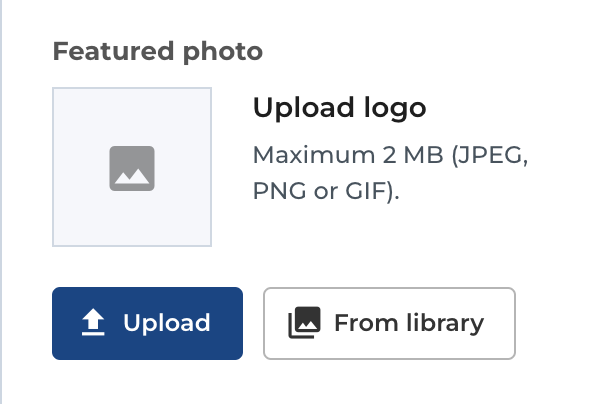
On the top of the sidebar we have one image picker that can be selected for the page.
Right now, the Featured photo will actually play the role of the og-image and for meta information (for social media sharing and google algorithms).
Slug
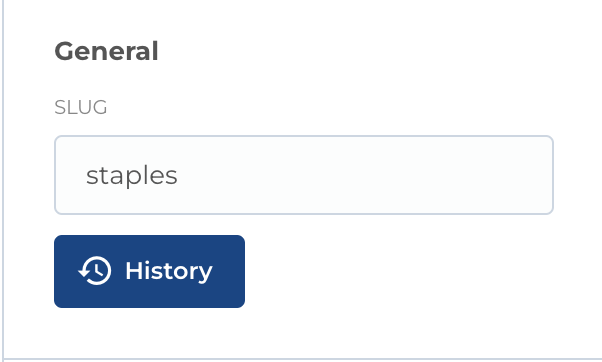
Slug is the URL part that defines which page to open.
The first slug is composed automatically when saving the page for the first time and it can be changed at anytime.
There are a few rules to keep in mind when changing the slug of a page:
- Do not use spaces in the URL
- Do not use uppercase letters in the URL
- Use descriptive URL slugs
Slug history
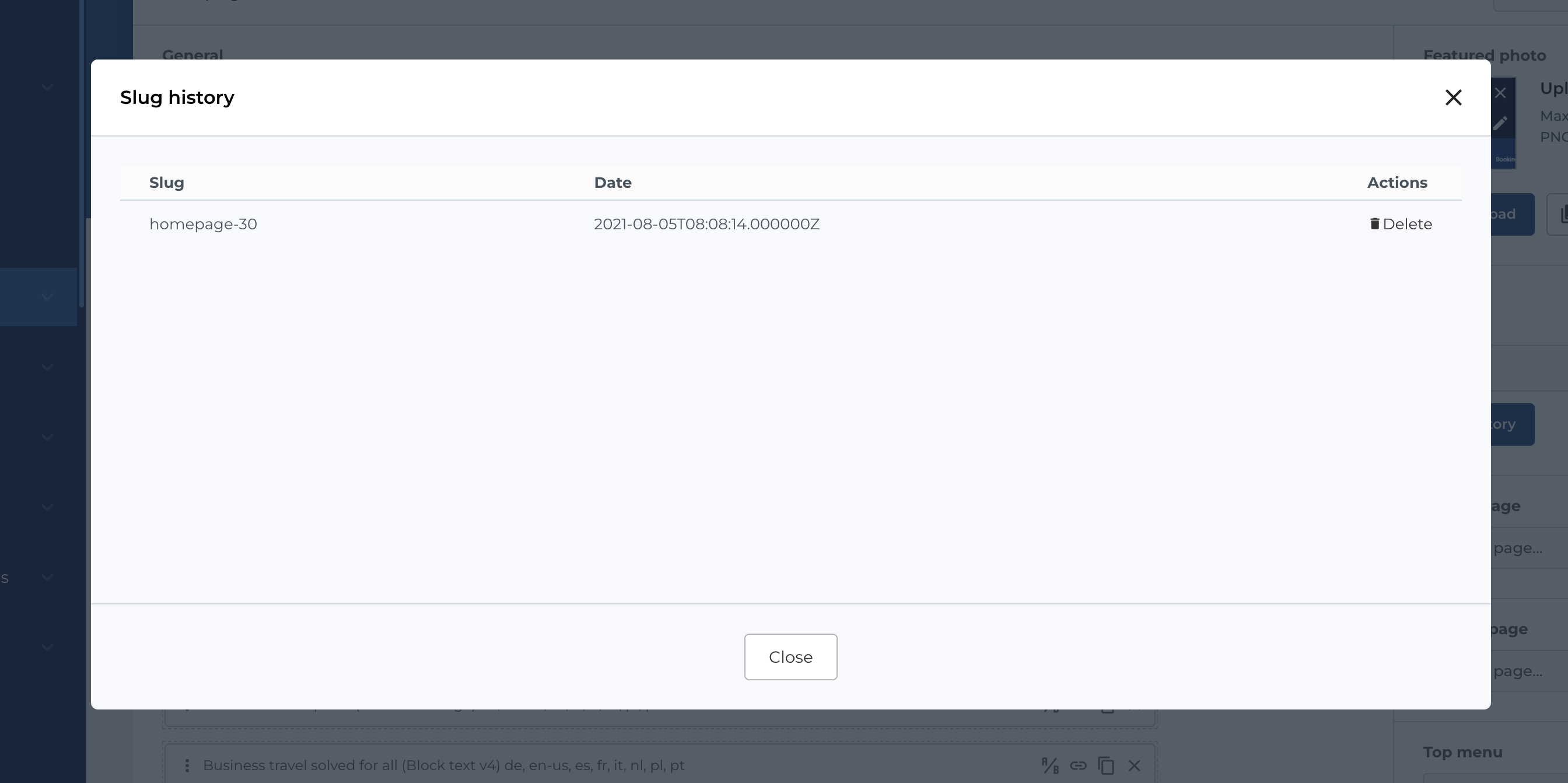
The slug history is part of the redirect system of the website.
The website will always remember the old slugs that had been used on the page, and will redirect anybody that enters a page on the old URL to the new URL. This was a feature meant to kill the danger of having dead links on the website (in case a page had been shared on social media for example and the slug changed after this).
The list of the slug history can be edited and configured in modal.
Slugs and multi-lingual module
The slugs are also tightly connected to the translation module. The slug of the page has be unique only PER page translation, meaning you CAN have same slug for same page, but for different languages (EN_US and EN_GB for example)
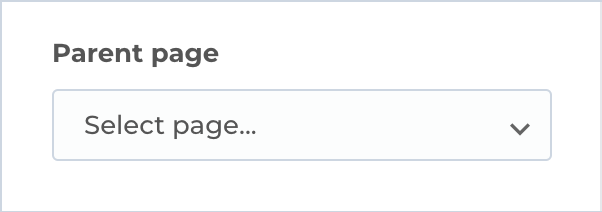
Parent page
The parent page functionality is being used for building a tree architecture between pages. The tree architecture will affect a few items, as:
1. Slug
The slug of the page will be always composed of the protocol https:// + website URL business.booking.com/ + language if not the original one en-us/ + parent page if applicable parent-page-slug/ + page slug page-slug/, resulting in the url: https://business.booking.com/en-us/parent-page-slug/page-slug/
2. The breadcrumbs
The breadcrumbs of the page will display same tree structure as is being built in the URL slug
Other settings section
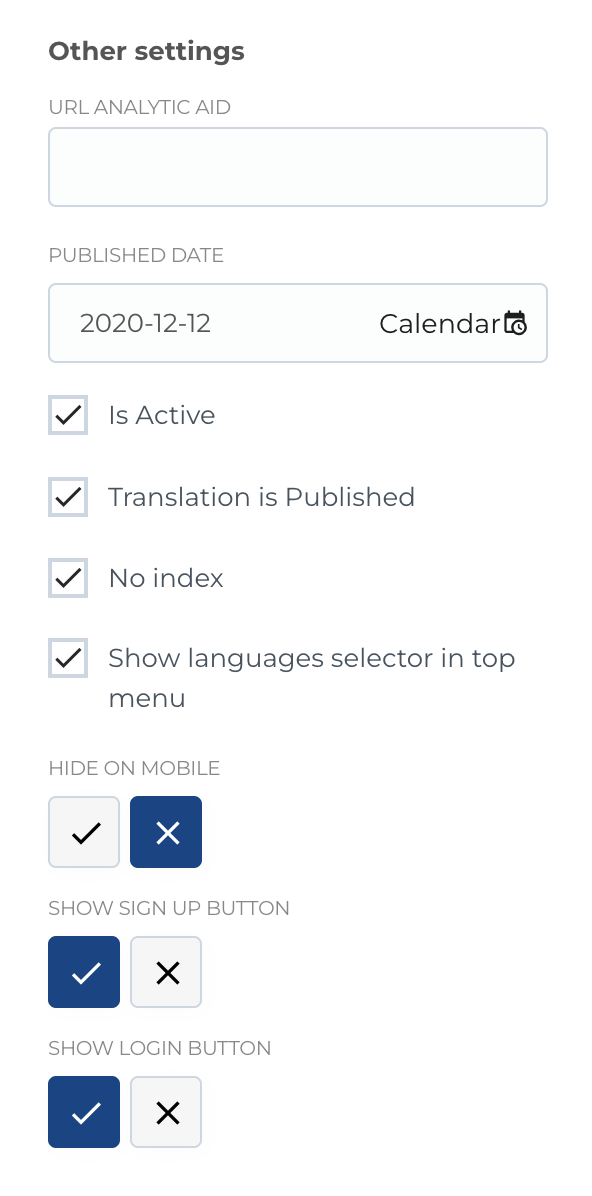
In section Other settings we have several page configuration, described below.
Url analytic AID
In the Url analytic AID field you can fill AID number and then it will be used to build url analytic query params.
Published date
Published date is the date which is automatically filled in when first saving the page, but it also can be adjusted. It is being used in the following cases:
- Article date display
- Meta information
- Sitemap information
Page is active / archived
This controller defines if the page is active / published or it is archived
Translation publishing
Besides archiving the complete page, publishing / un-publishing a certain translation is possible. This will make unavailable only that specific translation and in case somebody lends on it - he will be redirected to the original language of the page.
No-index
A turn on / off possibility of the indexing functionality of the page.
Show languages selector in top menu
In the top of page visitors can see logo, menu (if configured), language selector and buttons Login and Sign up. This controller can hide language selector on the page.

Show sign up button
As mentioned above, visitor see in the top of the page buttons Login and Sign up. With this toogle you can show / hide Sign up button.
Show login button
As mentioned above, visitor see in the top of the page buttons Login and Sign up. With this toogle you can show / hide Login button.
Hide on mobile
You can hide page from mobile screens with this toggle, if it's active - visitor on mobile screen will see screen Switch to desktop.

General fields
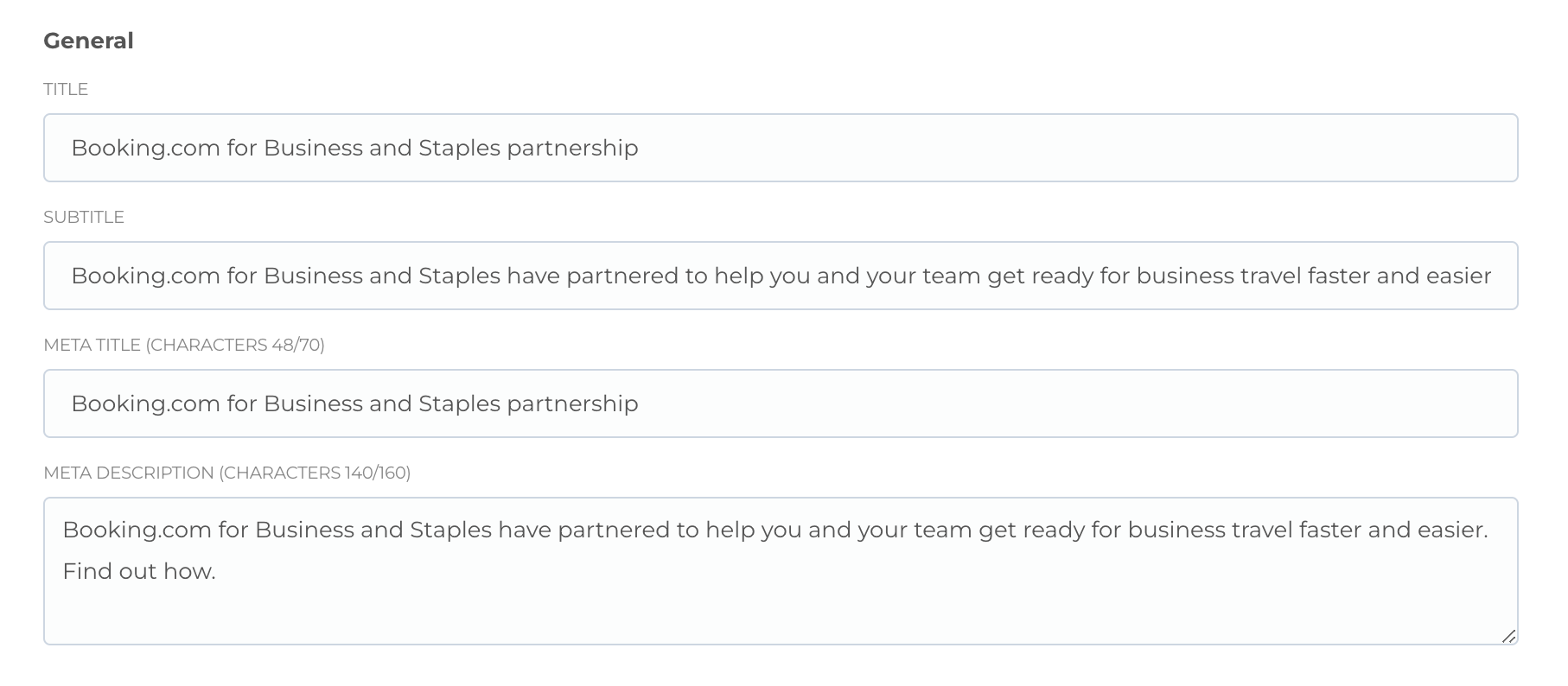
This section contains several text fields:
- Title (used as page name in lists and in title tag)
- Subtitle (used with page type
Post, displayed on front) - Meta title (used for meta and og attributes, for social media sharing and google algorithms)
- Meta description (used for meta and og attributes, for social media sharing and google algorithms)
Blocks
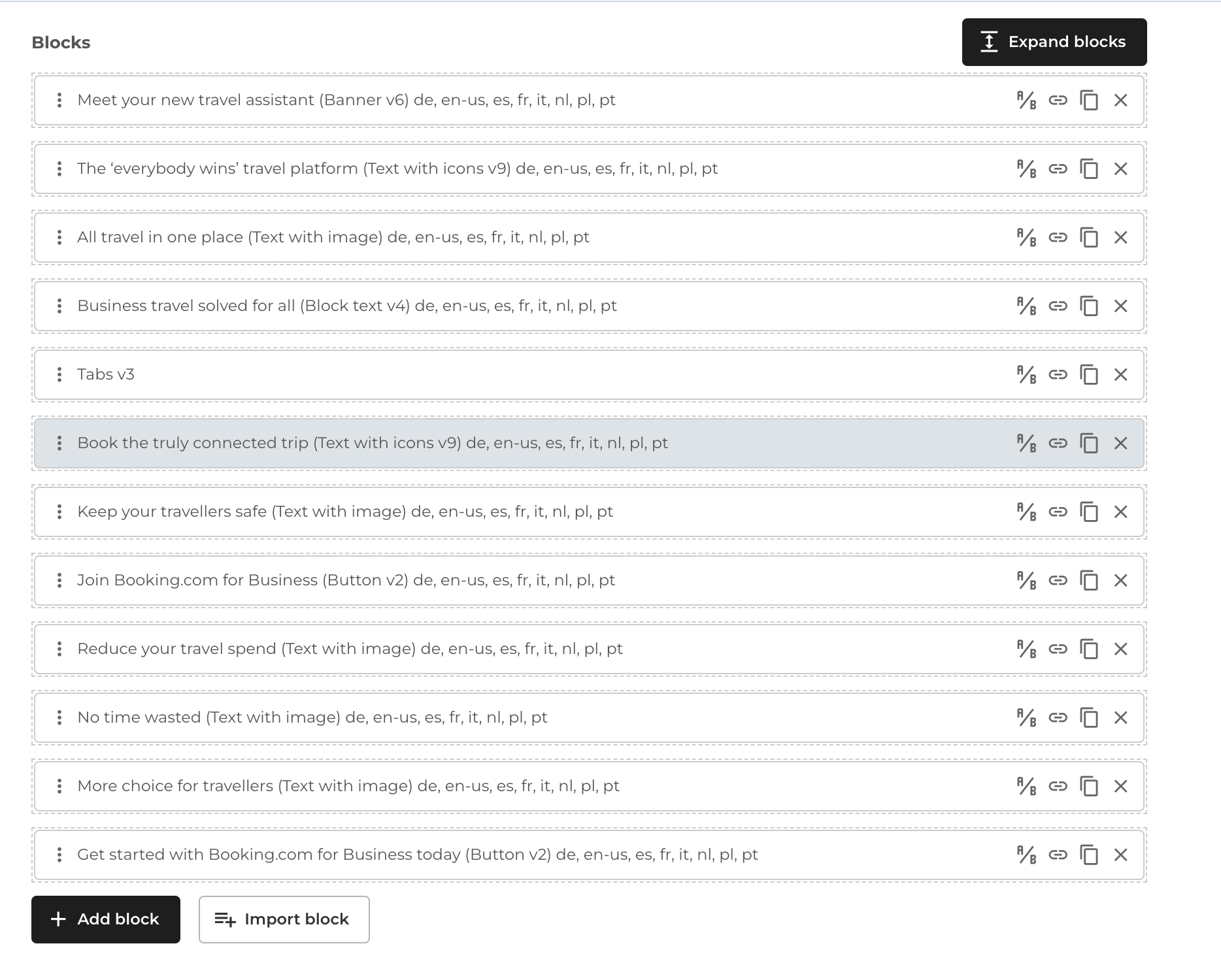
In this section you can build page with different blocks, as described here.
Bottom buttons
In the bottom of the Page edit you can see several buttons:
-
Save: This button allows you to save your current changes as an intermediate version or draft. The changes are not published or visible to the public, but they are preserved for further editing.
-
Save & Publish: This option saves your changes and immediately publishes the page. The updated content becomes live and accessible to the public once this action is completed.
-
Save & Exit: This button saves your changes as an intermediate version and then exits the editing interface. Your work is saved, but the changes are not published, allowing you to continue later.
-
View Page: This button opens the current published version of the page in a new tab. It shows the content that is currently live and visible to the public.
-
View Intermediate: If an intermediate version exists, this button allows you to view the saved but unpublished version of the page. It opens the intermediate version in a new tab for review.
-
Publish Intermediate: If an intermediate version exists, this button publishes the saved changes, replacing the current live version with the intermediate version. Once clicked, the intermediate version becomes live and accessible to the public.
