Technical introduction
Dashboard
Languages & Translations
Pages
Blocks
Menus
Content
Libraries sections
MemSource Integration
Log actions
Configurations
Form requests
Form contact
AB service
Travel Policy Builder
Mouseflow
Form calculator v2
Intro
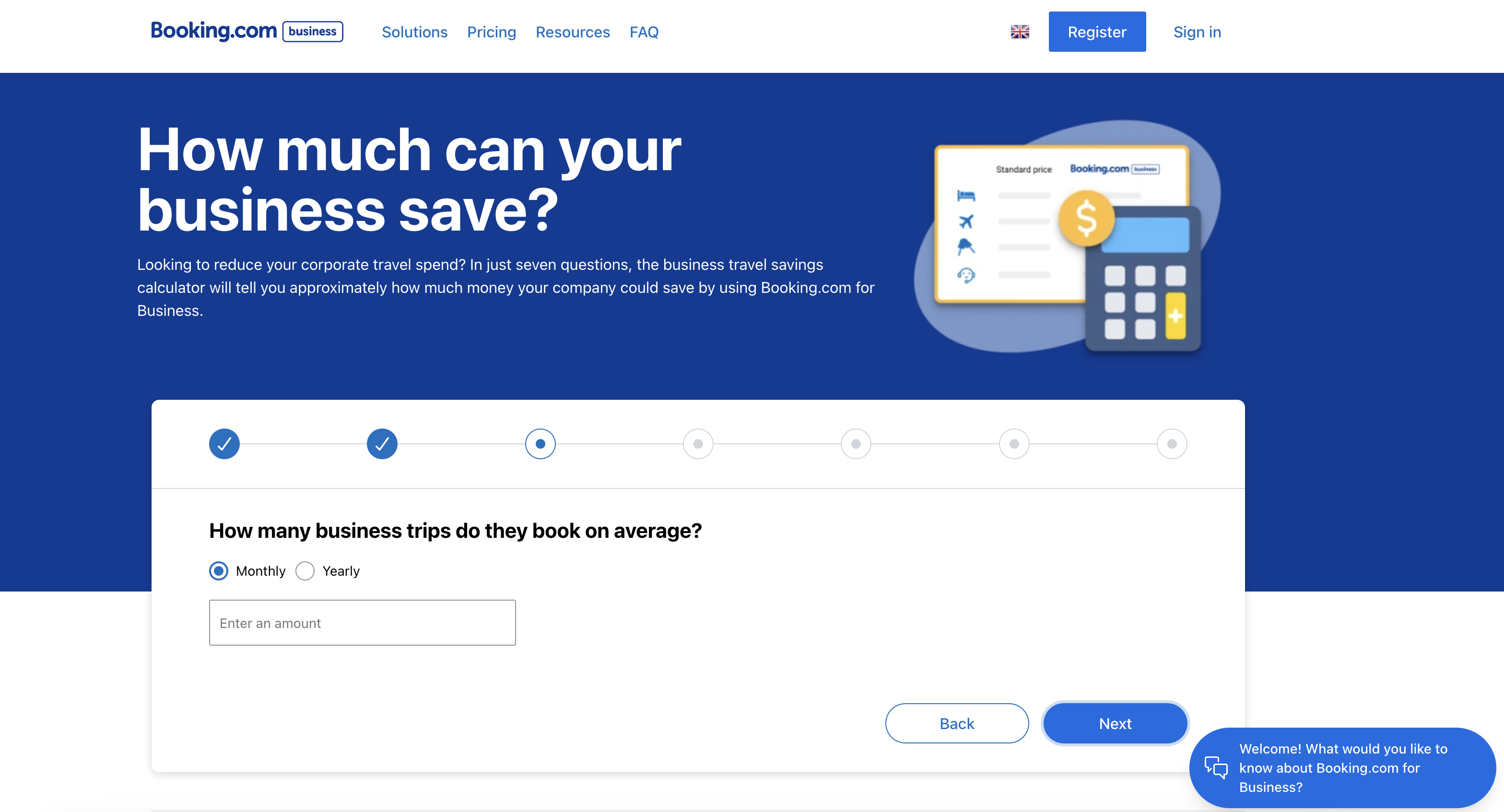
In this section in admin panel you can find list of Calculator v2 form requests - form filling results by user in block Calculator v2.
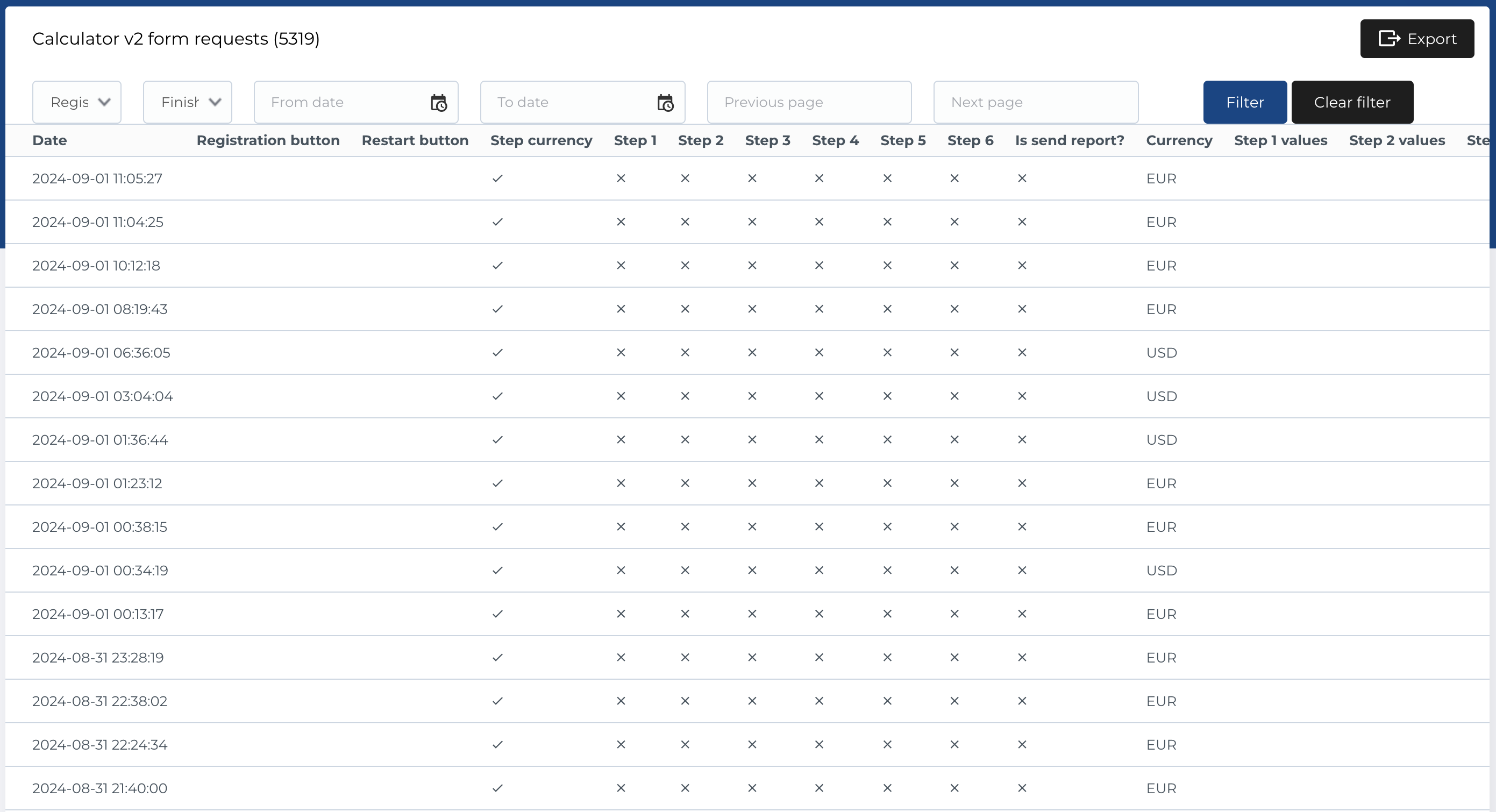
Form requests list
The Form Requests section displays a table with the following columns:
- Date: The date when the form was submitted.
- Registration Button: Displays "Clicked" if the user clicked the registration button.
- Restart Button: Displays "Clicked" if the user clicked the restart button.
- Step Currency (*step): Indicates whether the user completed the currency step (checkmark or cross).
- Step 1 (*step): Indicates whether the user completed this step (checkmark or cross).
- Step 2 (*step): Indicates whether the user completed this step (checkmark or cross).
- Step 3 (*step): Indicates whether the user completed this step (checkmark or cross).
- Step 4 (*step): Indicates whether the user completed this step (checkmark or cross).
- Step 5 (*step): Indicates whether the user completed this step (checkmark or cross).
- Step 6 (*step): Indicates whether the user completed this step (checkmark or cross).
-
Is Send Report?: Displays a checkmark or cross, indicating whether the form request was successfully sent to a remote URL (configured in the
.envfile). - Currency: The selected currency in the form.
- Step 1 Values: Values selected by the user during step 1.
- Step 2 Values: Values selected by the user during step 2.
- Step 3 Values: Values selected by the user during step 3.
- Step 4 Values: Values selected by the user during step 4.
- Step 5 Values: Values selected by the user during step 5.
- Step 6 Values: Values selected by the user during step 6.
- Marketing Consent: Displays "Yes" or "No", indicating whether the user gave consent for marketing.
-
Msg ID: The
msg_idfrom the response to the remote URL, as described in the Is Send Report? column. - Geo Location: The user's geographical location.
- Language: The selected language of the page where the form was filled.
- Previous Page: The URL the user visited before accessing the form.
- Next Page: The URL the user visited after submitting the form.
Note: For each step, a checkmark indicates completion, while a cross indicates that the step was skipped or not completed.
Available Actions
The following filters and actions are available for managing form requests:
Filters
-
Registration Button: Dropdown with options:
- Yes: Filter for users who clicked the registration button.
- No: Filter for users who didn’t click the registration button.
-
Finished: Dropdown with options:
- Yes: Filter for completed forms.
- No: Filter for incomplete forms.
- Date Filter: A date picker to filter form submissions within a specific range (From and To).
- Previous Page / Next Page: Text input fields to filter based on the previous or next page URLs.
- Filter Button: Applies the selected filters.
- Clear Filter Button: Resets all filter criteria.
Export form requests
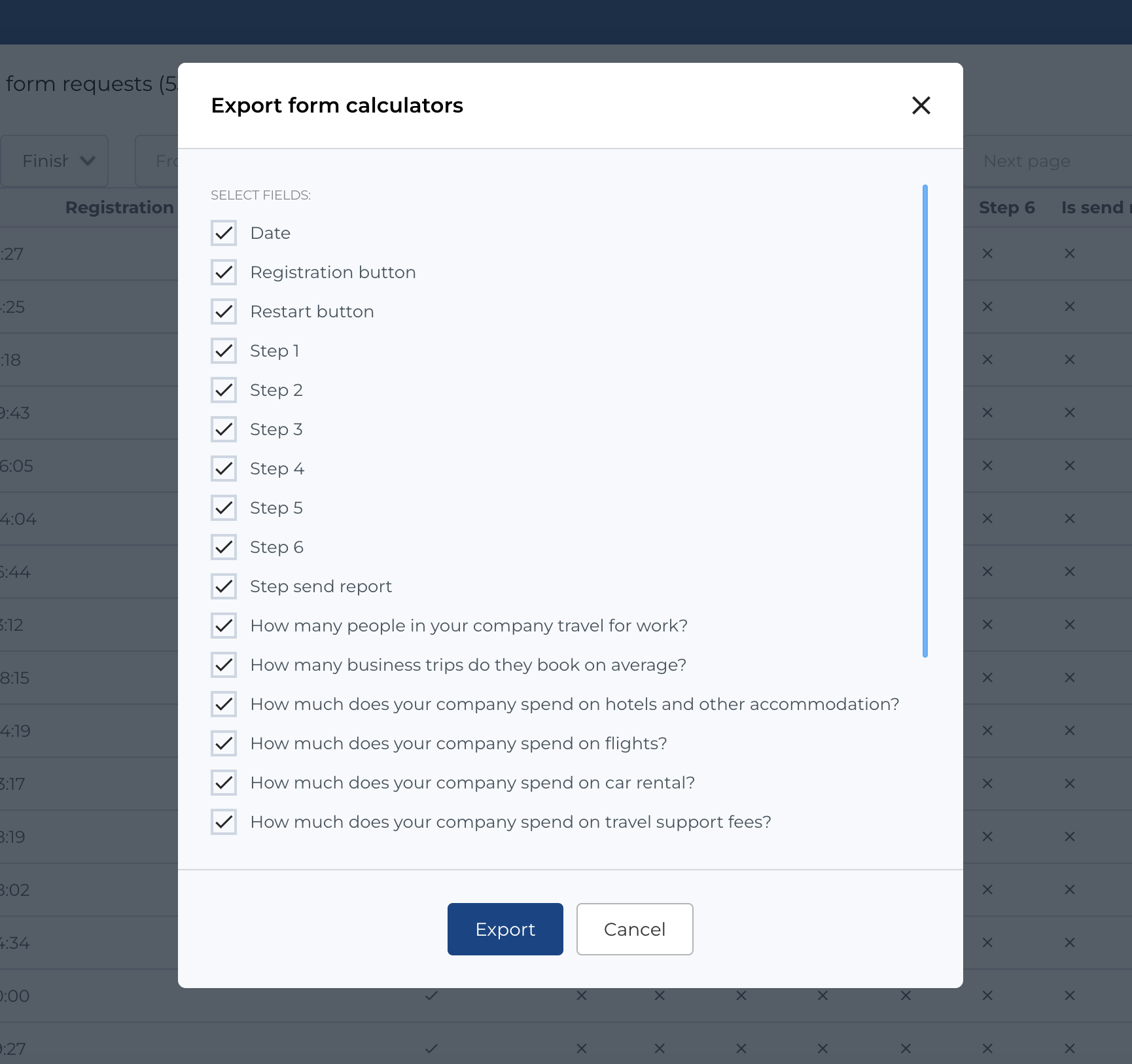
To export form requests:
- Click the Export button.
- A modal will appear where you can select which columns to include in the export.
- The export format is
.csv.