
Form contact features
- Intro #1
- Form contact features list #2
- Send all form contact features to MemSource #3
- Create new form contact feature #4
Intro
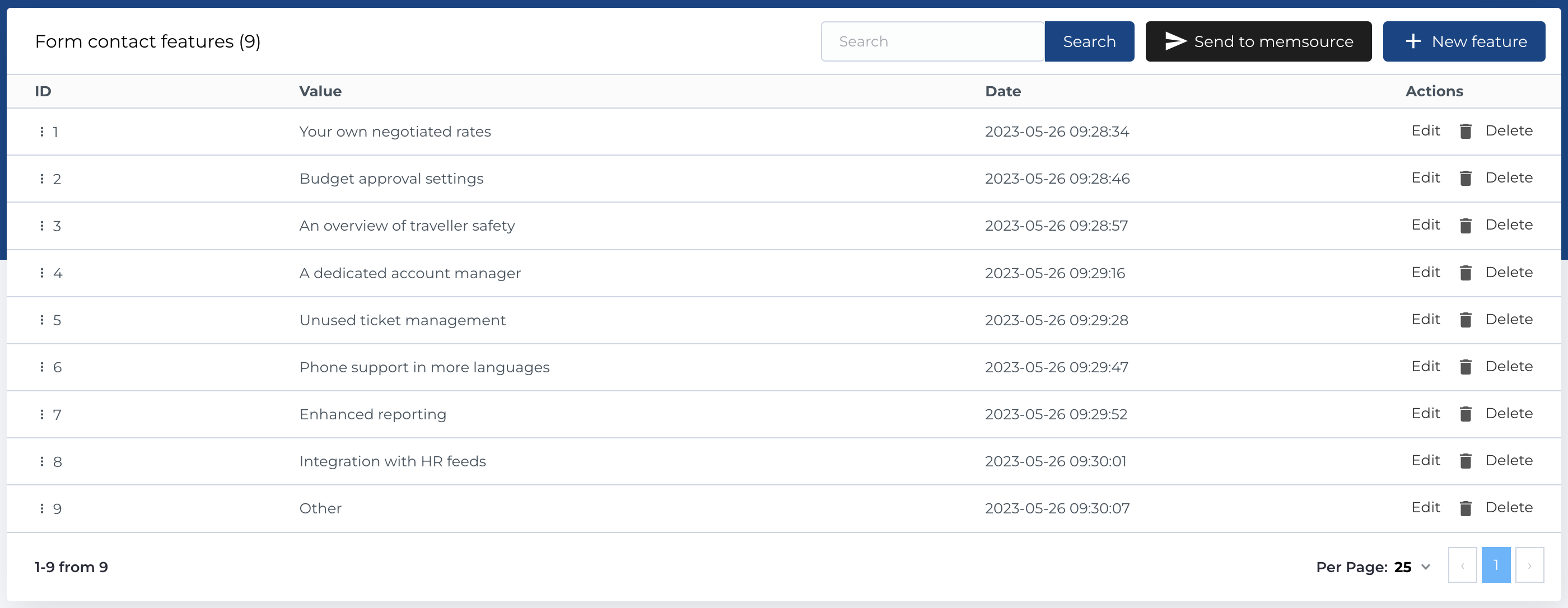
This section in admin panel consists of form contact features list.
These entities used in modal Contact us (can be selected as link type for menu items and links in blocks, etc.) - when user open this modal, user will see this list as checkboxes.
Form contact features list
The table contains the following columns:
- ID: The unique identifier for the contact feature.
- Value: The value or text of the contact feature.
- Date: The date when the contact feature was created.
- Actions: Available actions for each contact feature.
Available Actions
The following actions are available for managing contact features:
- Sorting Items: Reorder the list by dragging and dropping rows using the three dots in each row.
- Search: Search for contact features by the Value field.
- Send to MemSource: Opens a modal for configuring the export of contact features to MemSource. (Described below)
- Create New Entity: Add a new contact feature to the list.
- Edit Existing Entity: Modify an existing contact feature.
- Delete Entity: Permanently remove a contact feature from the list.
Send all form contact features to MemSource
As mentioned in previous section, button Send to MemSource available on the Form contact features list page at the top.
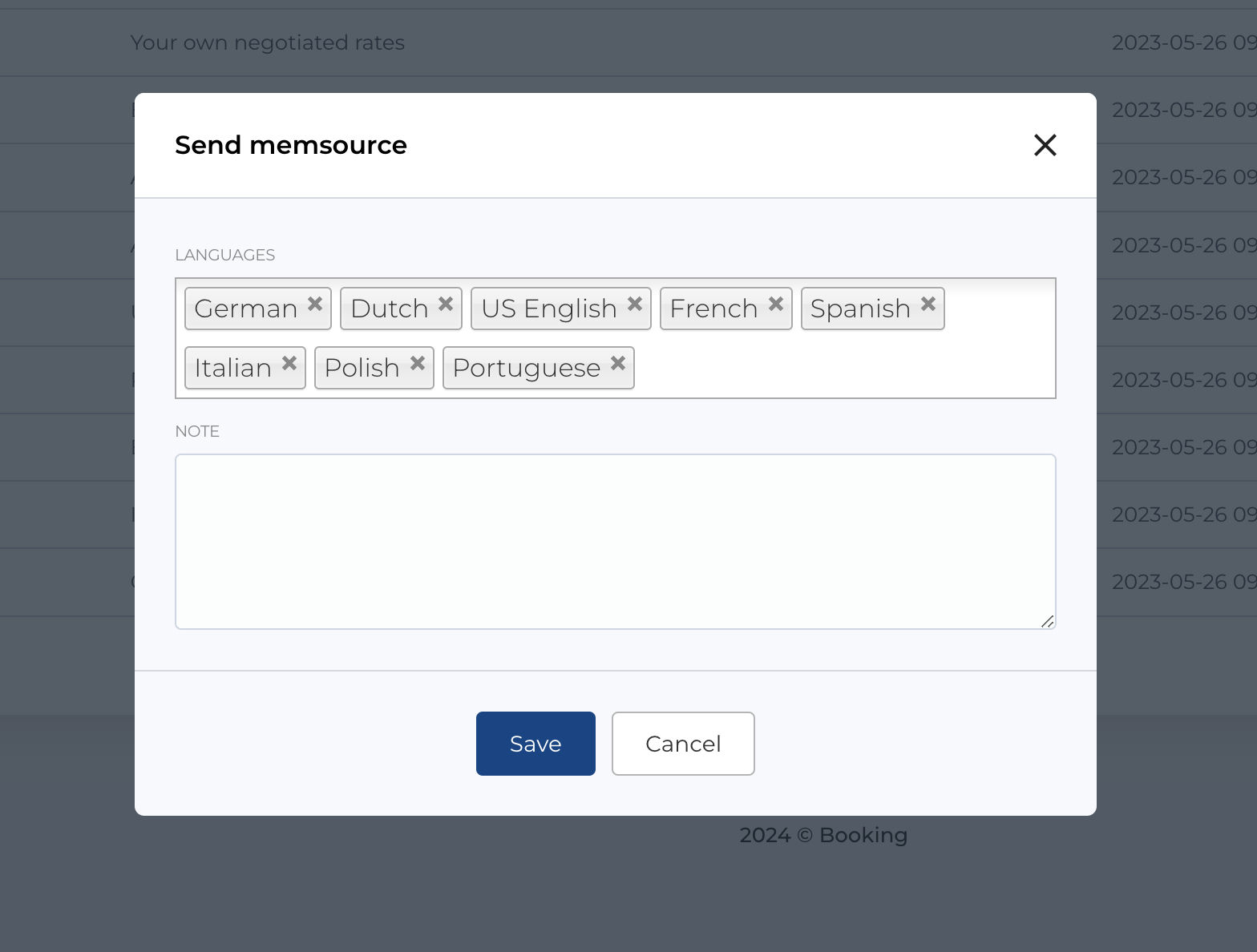
After clicking button, a modal will open and some configurations will be available.
You can specify menu translation languages and add comment in Note fields, whitch will be sent to MemSource.
Create new form contact feature
To create a new form contact feature, use the Create New form, which contains the following field:
- Text: The value or text to be displayed in the contact feature.
Required Fields
- Text
The Edit form is identical to the Create New form and allows you to modify the Text of an existing contact feature.
