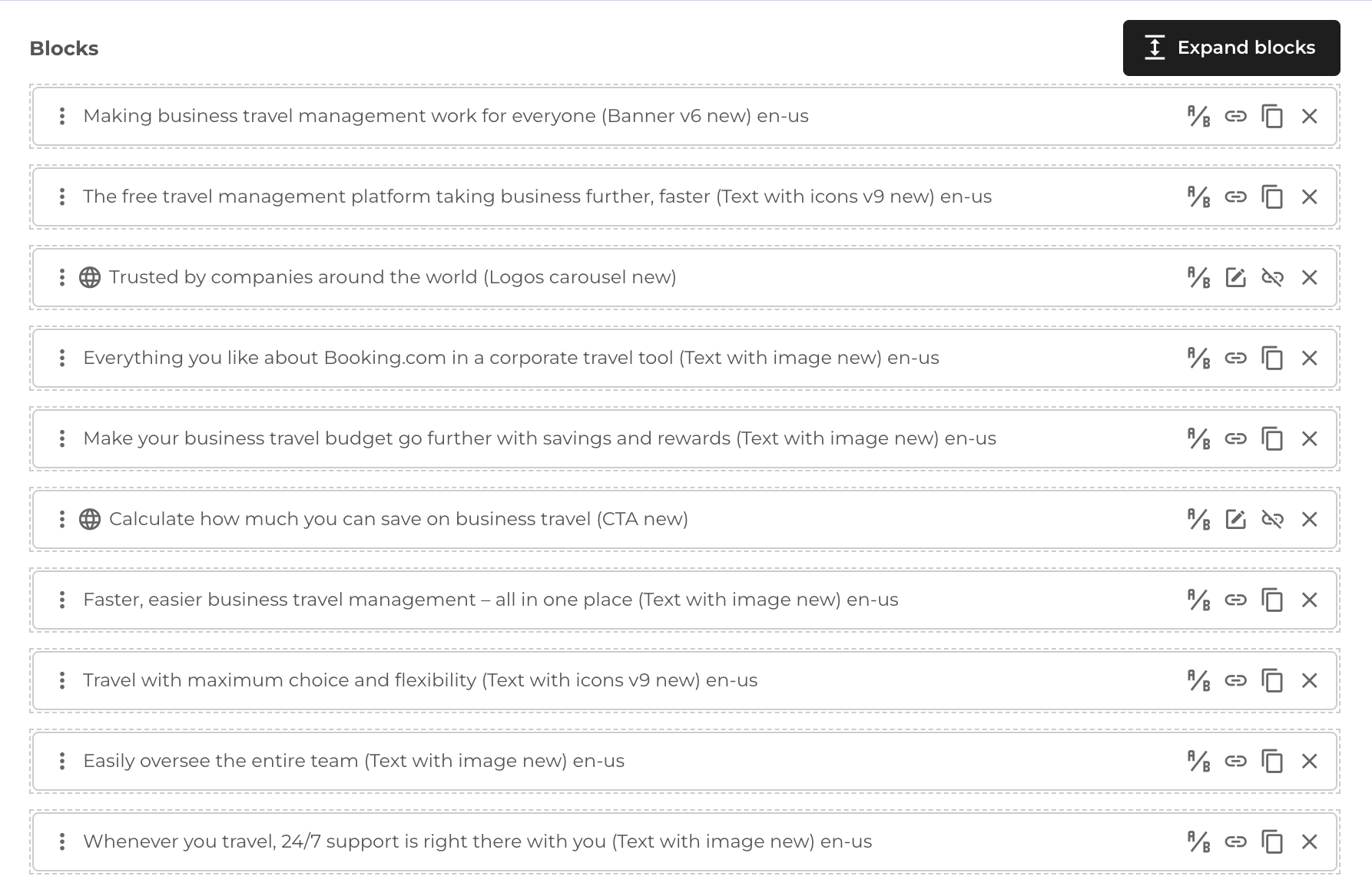
Page blocks (local blocks)
- Intro #1
- Block visibility for page #2
- Add new local block #3
- Block search #4
- Block selection #5
- Import global block #6
- Block settings #7
- Sorting of blocks on the page #8
- Collapsing the list of blocks #9
Intro
In CMS when you edit / create page, you can add new block (local block) or import existing one (global block).
Block visibility for page
Each block configured in the CMS is available for specific page types, so when you edit any page and open the modal to add a new block, you will only see the available blocks for that page, depending on it's type.
Add new local block
Adding a new block is executed from the bottom of the page - the button Add block. This button will open the modal with all the blocks available sorted by the categories. You can select multiple blocks to be added to the page.
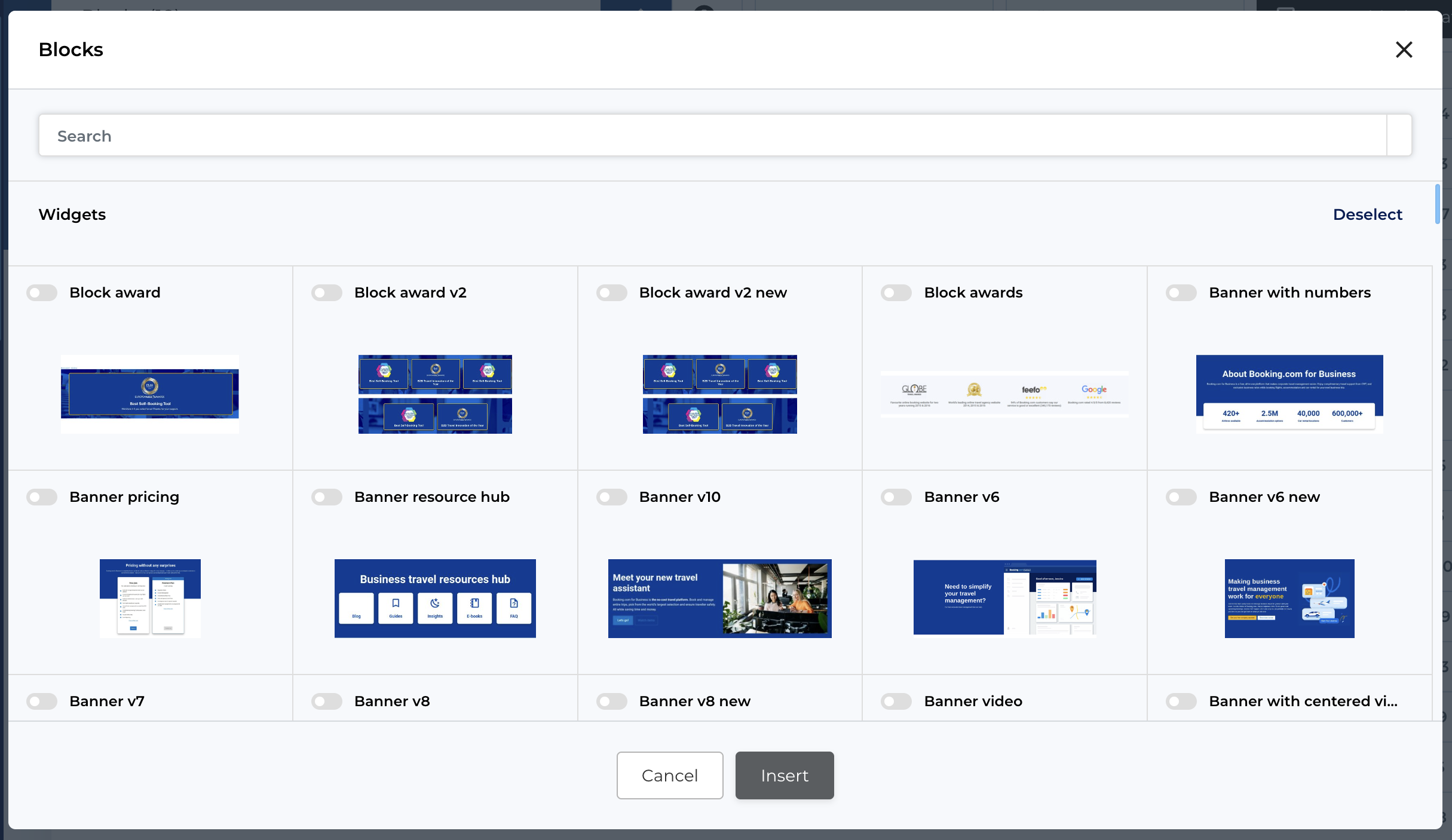
Block search
In the modal block selection, you can search for blocks by name, which will make it easier to find and select the block you want.
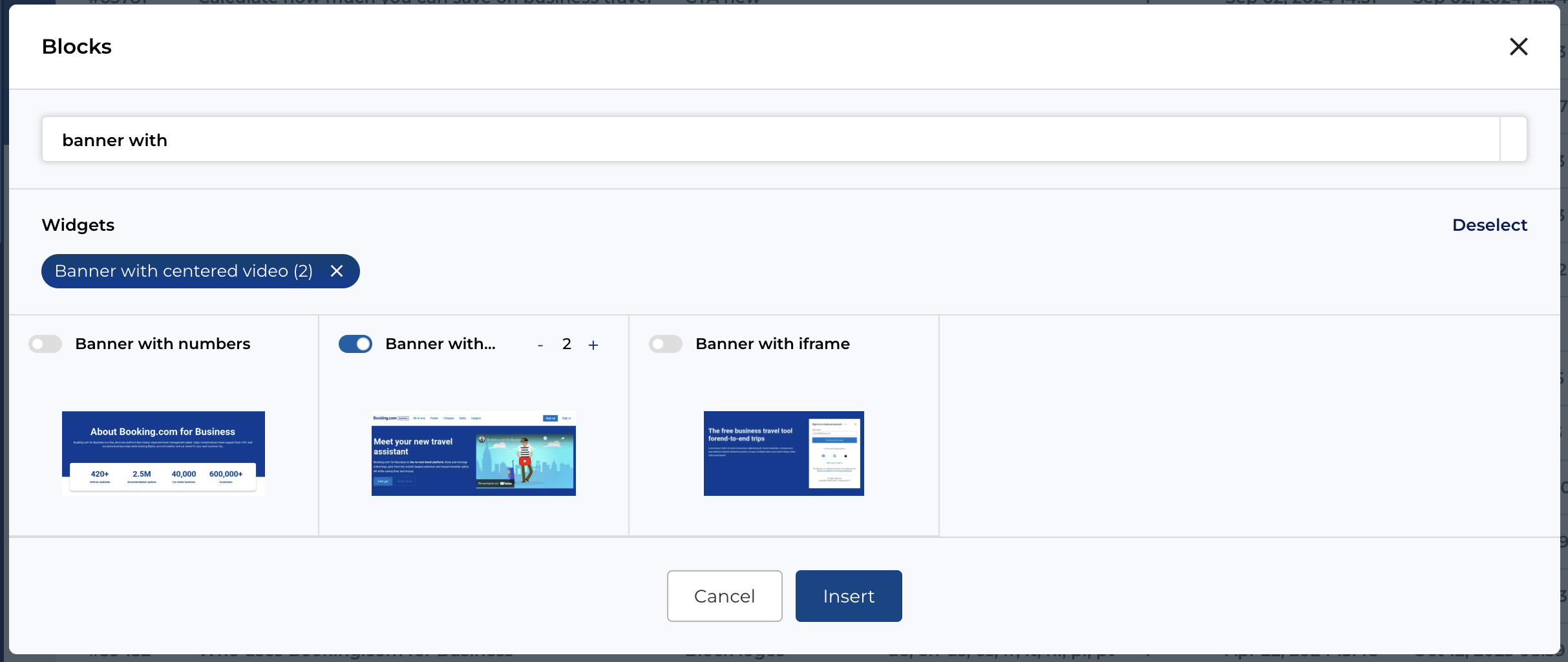
Block selection
You can select multiple blocks and multiple counters per block using a toggle on each block item. After the selection block, the block element count (with + and - buttons) will be available for that block and you can choose how many blocks of the selected type you want to add to the page.
After you have selected all the necessary blocks, click button Insert in the bottom of the modal to add them.
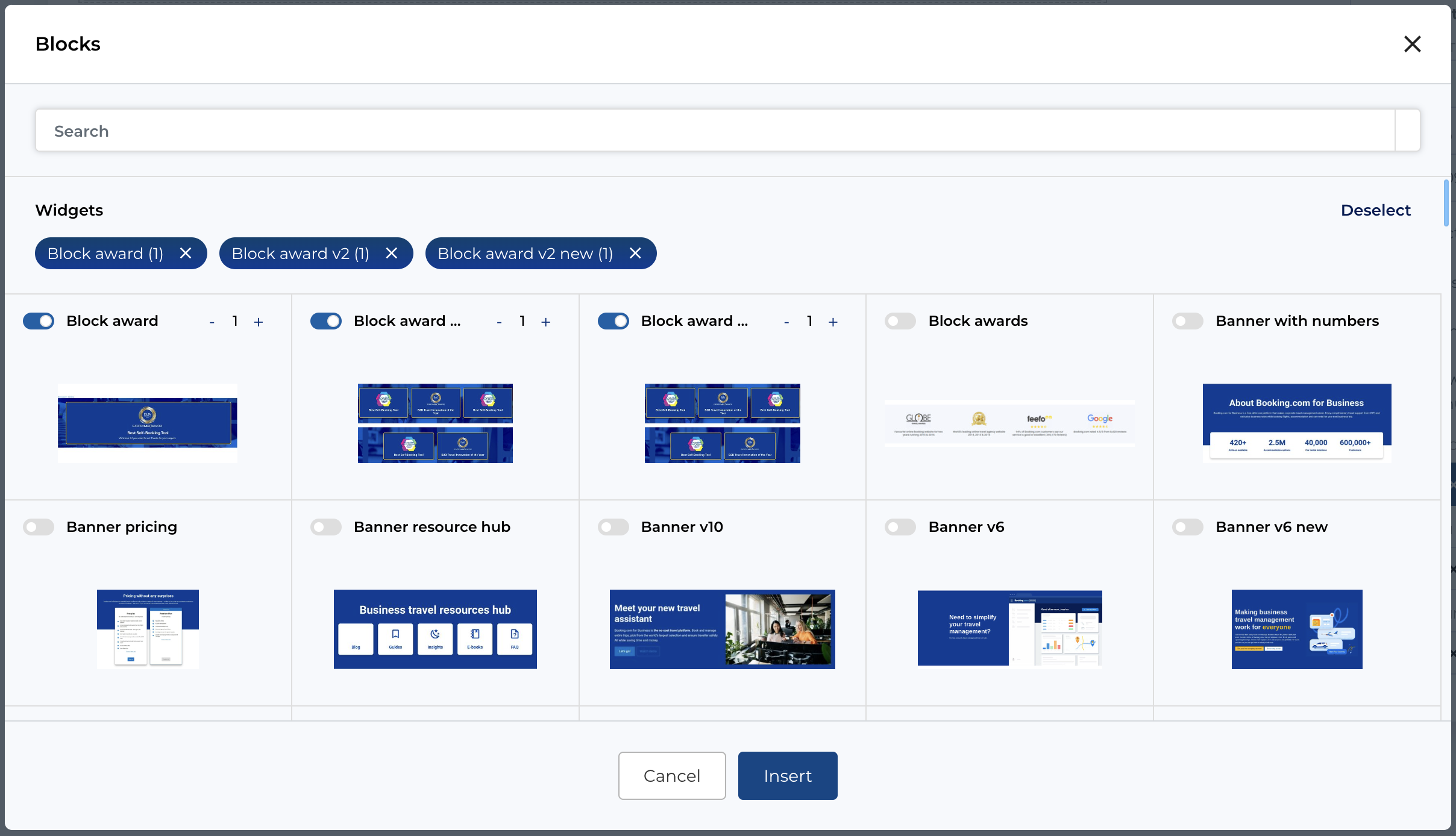
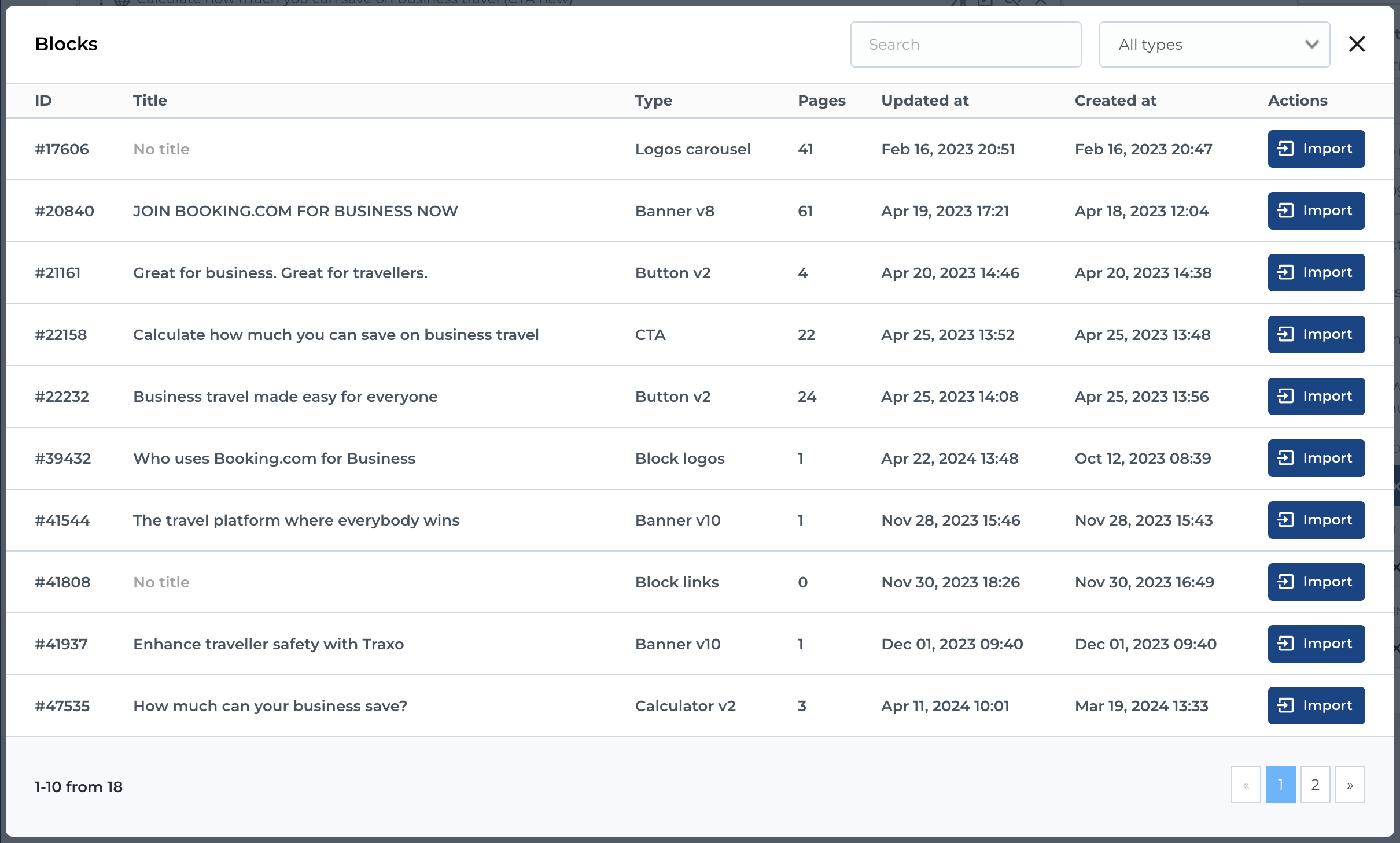
Import global block
Importing an existing block is executed from the bottom of the page - the button Import block. This button will open the modal with all available global blocks. You can select block with button Import
Block settings
For each block we have the following global settings:
- Hash
- Display on mobile or desktop devices
Block hash
Block has is an optional settings that can be used when you need to link to that block in an URL. By specifying a hash for a specific block and adding it to the URL of the page in the following way: https://website.com/page-slug#hash-of-block - this link will scroll down to that specific block when entering on it.
Display or hide blocks on mobile or desktop devices
This action allows you to display or hide a certain block on mobile or desktop devices. This feature is very handy when we talk about building a page that needs to have alternative content or structure on mobile and desktop devices. By hiding / showing certain blocks - you can build like this 2 pages within 1 - 1 page for each device type.
Sorting of blocks on the page
For sorting the added blocks on the page - there is a drag and drop functionality in place. To make sorting easier, please use the Collapse blocks button in the top-right corner of the list of blocks.
Collapsing the list of blocks
The collapse functionality of the blocks facilitates easier sorting and navigation through the existing blocks on the page.